 Black Friday
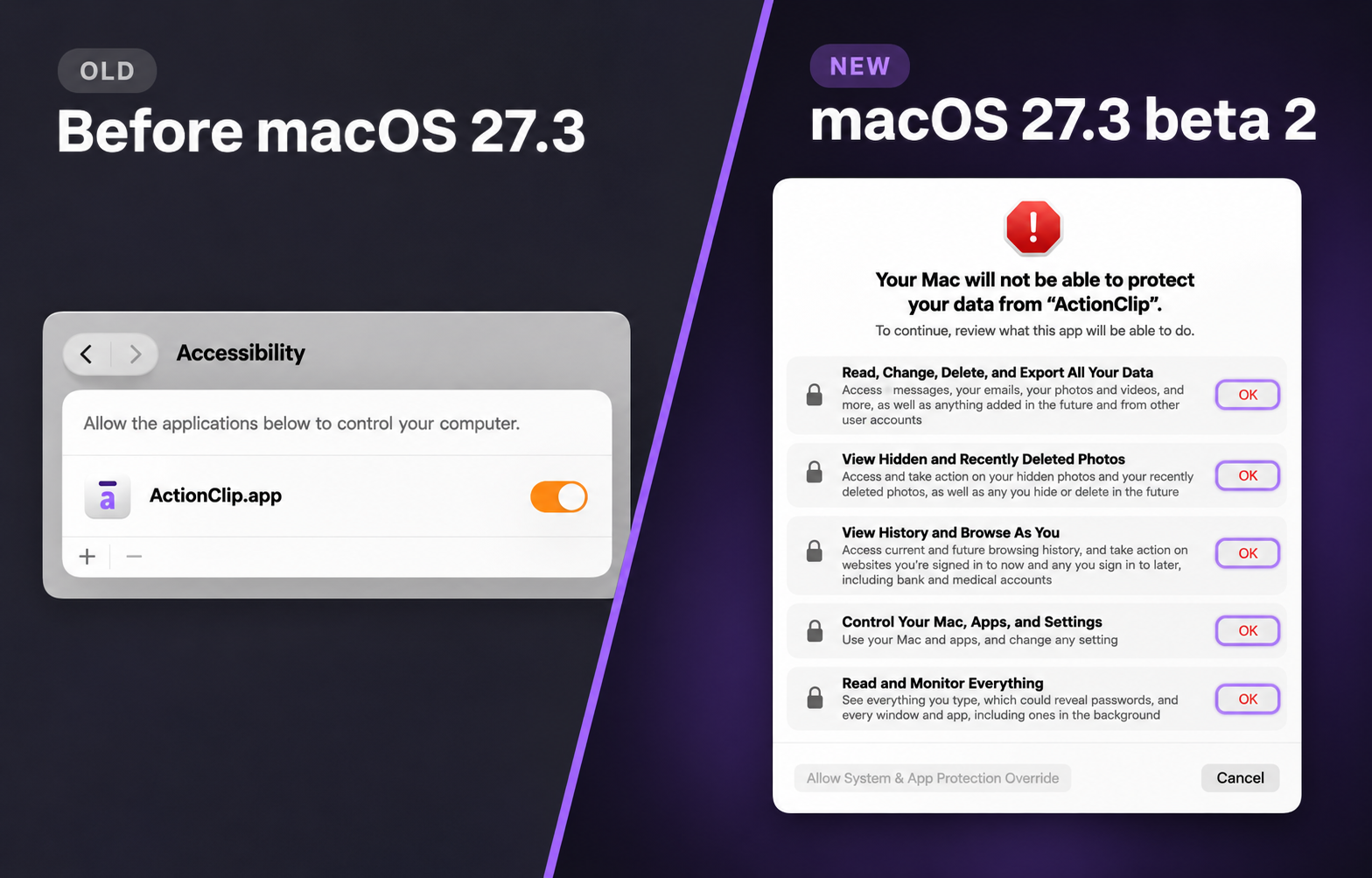
What changed in macOS 27.3?
In macOS 27.3 beta 2, Apple changed how you give apps permission to control other apps. ActionClip’s access is now managed in System & App Protection Override. The separate Accessibility list is for assistive tools.
ActionClip uses this access to detect selected text and run actions such as Copy, Cut, Paste, formatting and text replacement in the app you are using. Without it, selection detection or editing may not work.
macOS offers access to chosen apps or full control. This guide shows the full-access setup; review the warnings before approving it. Previously granted permissions remain in effect after updating macOS, so you may not need to set up access again. Read Apple’s announcement.
Enable access
1. Open System Settings
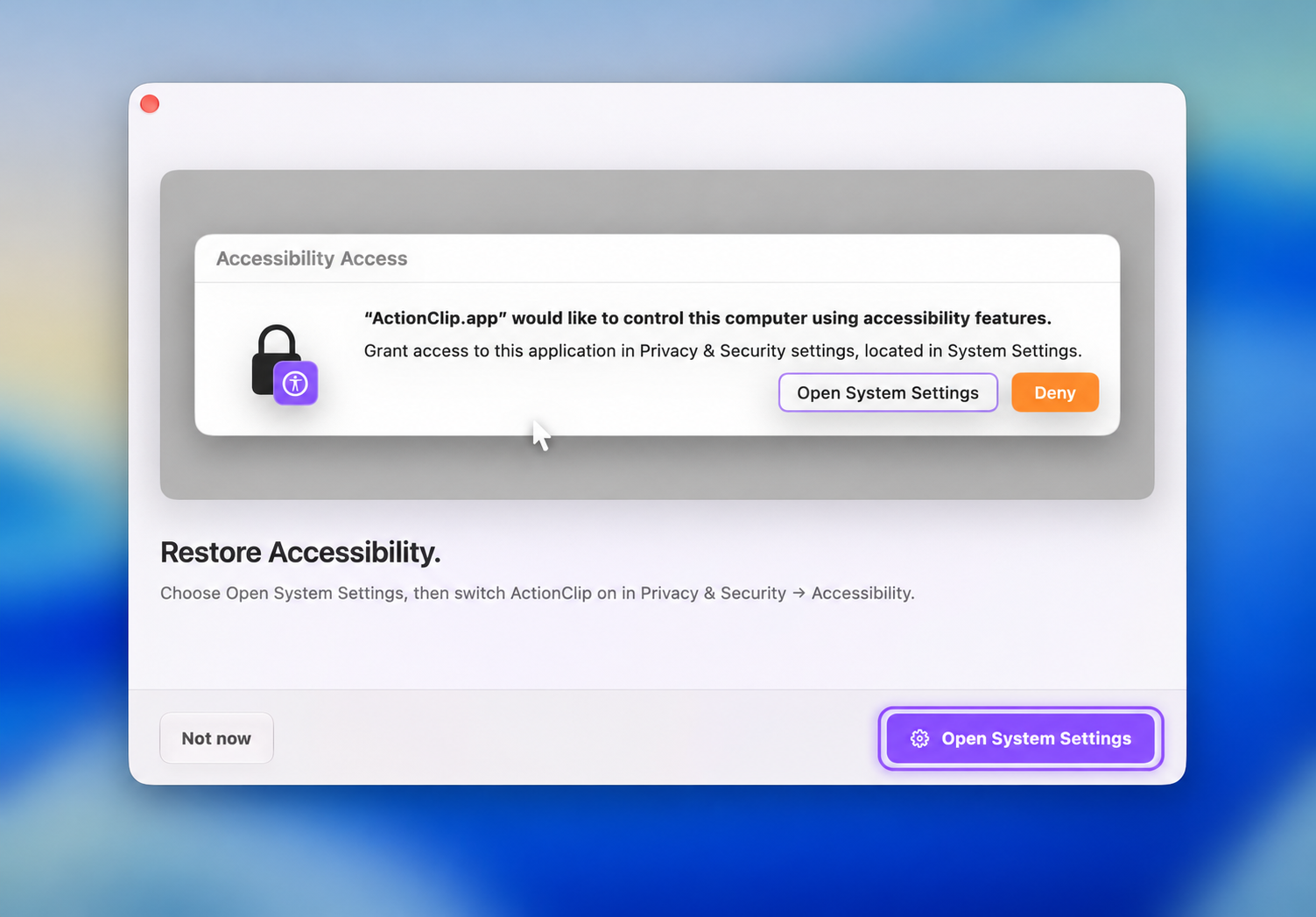
In ActionClip, click Open System Settings. On macOS 27.3, open Privacy & Security → System & App Protection Override.
2. Add ActionClip
If ActionClip is already listed, check its permissions instead of adding it again. If it is missing, click + at the bottom of the list.
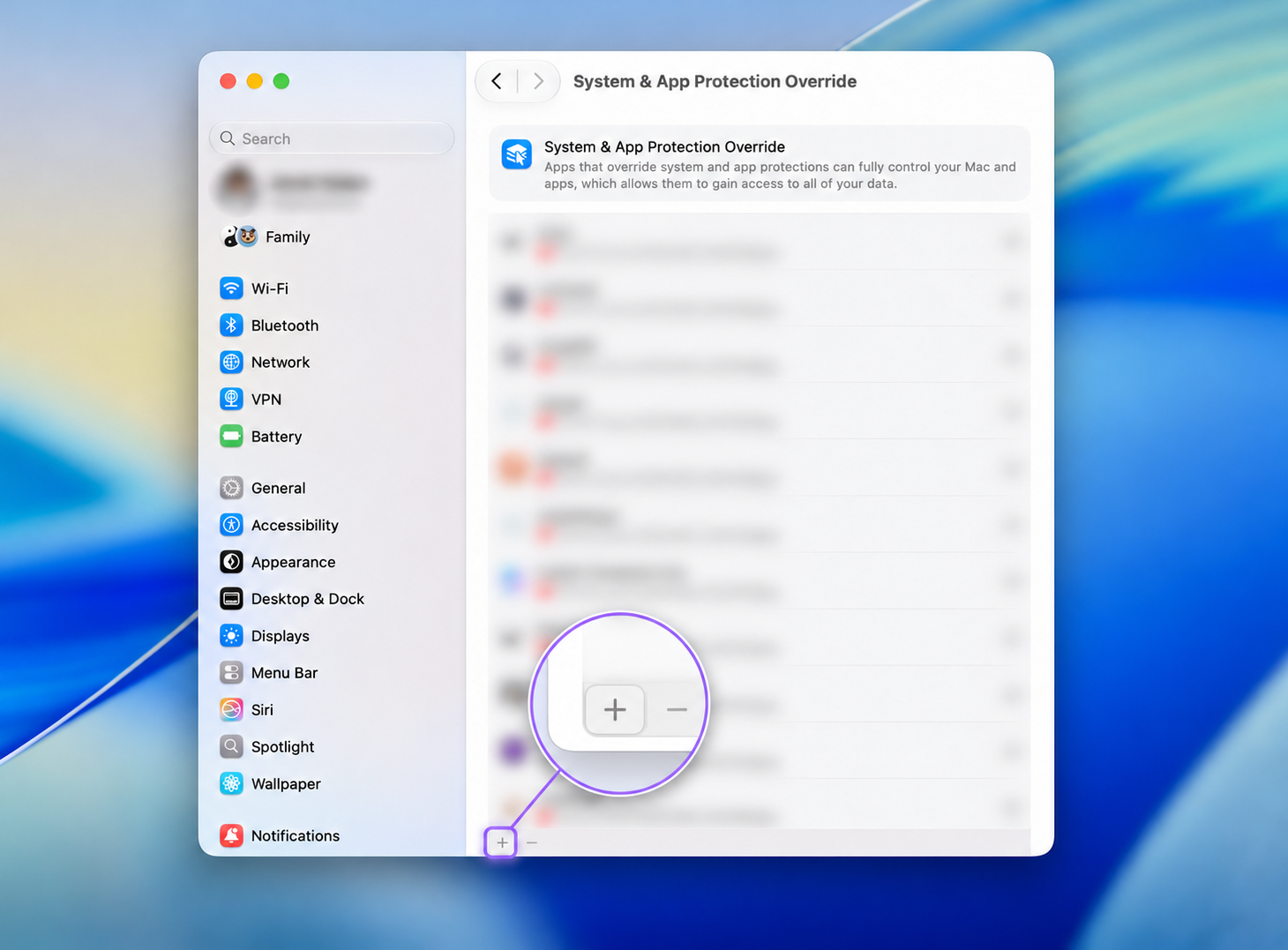
Select ActionClip in Applications, then click Add.
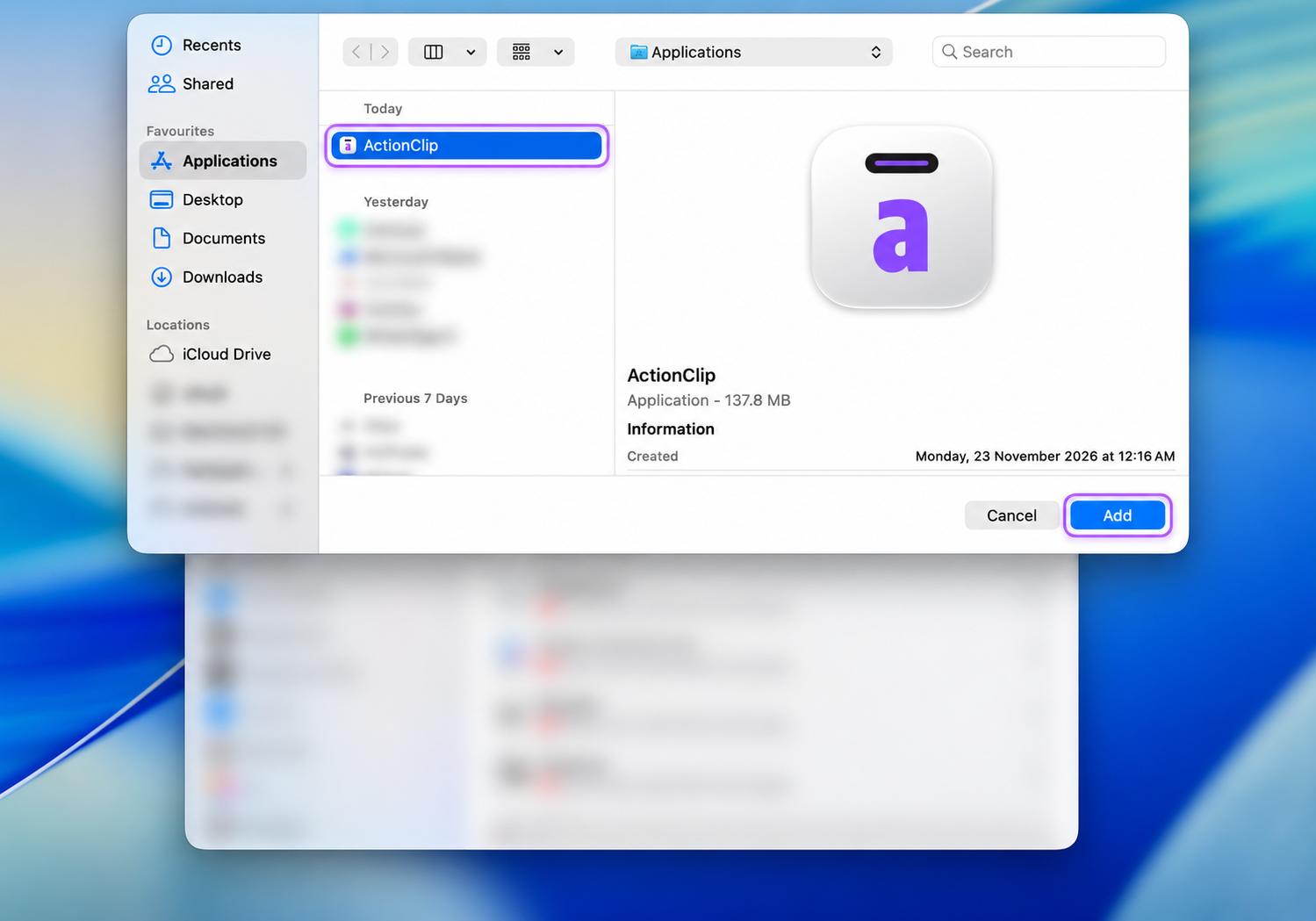
3. Choose access
For full access across apps, choose Override System Protections. Continue only if you trust ActionClip with this access.
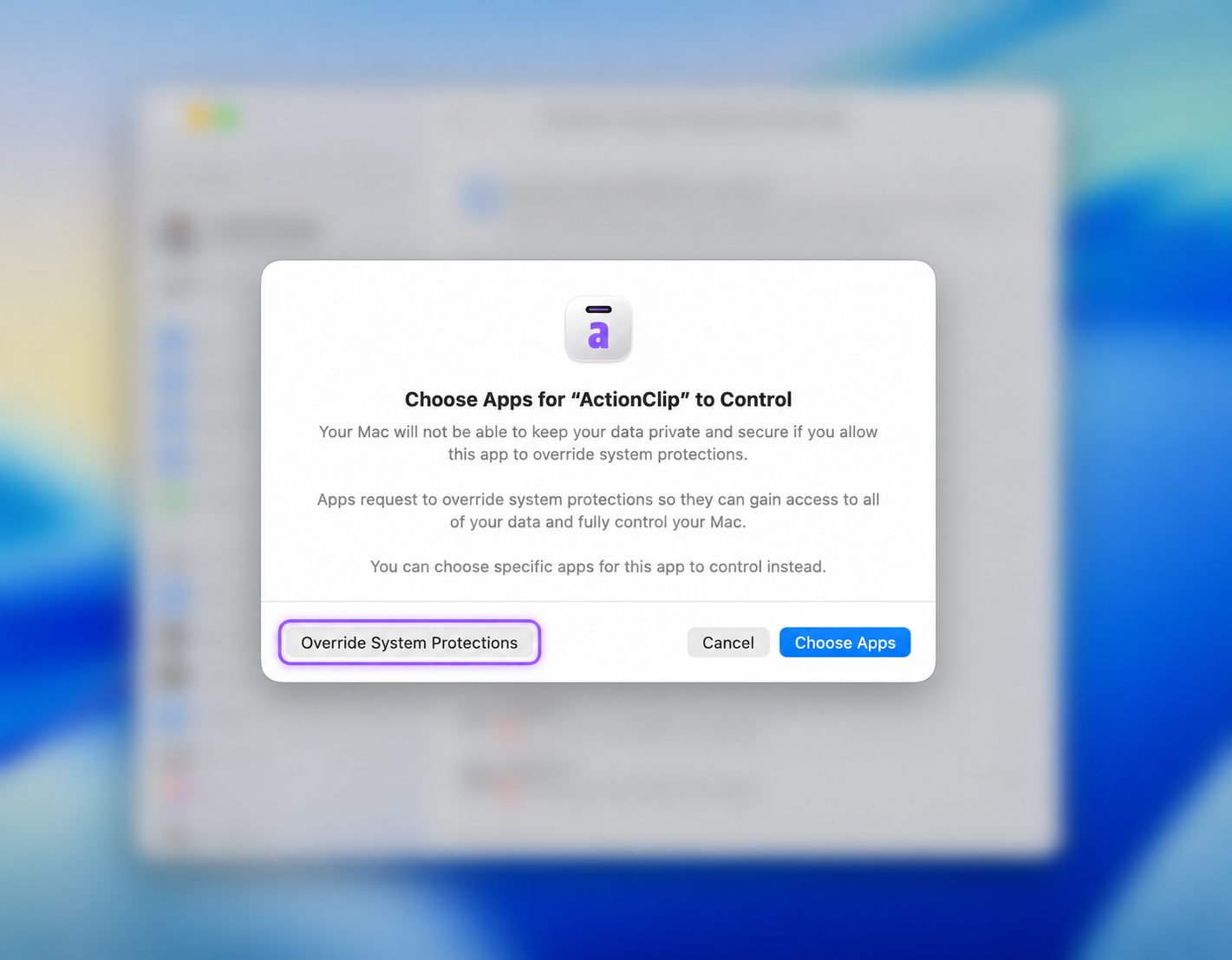
4. Review the warnings
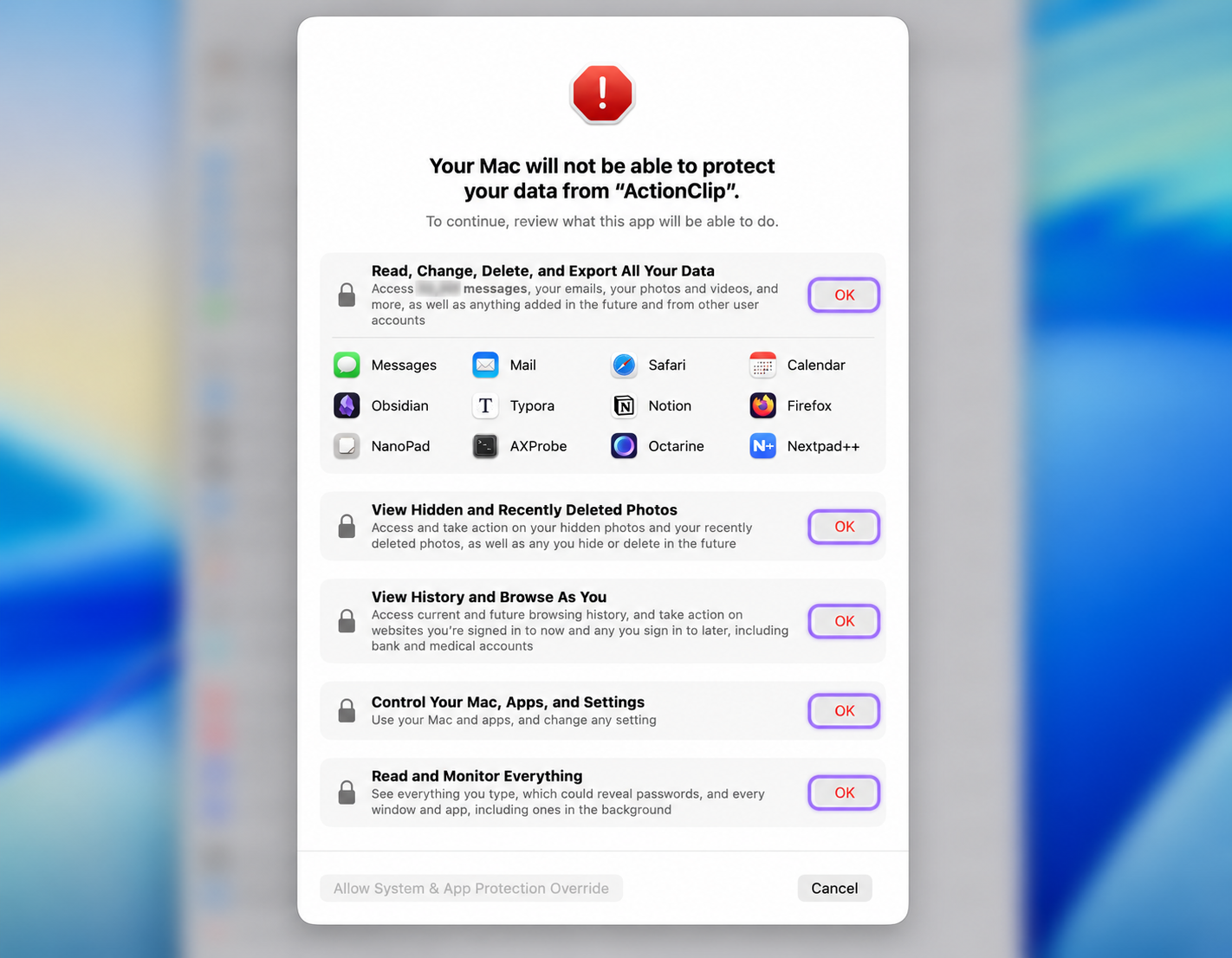
Read each warning and click its OK button. All five must be acknowledged for this full-access option.
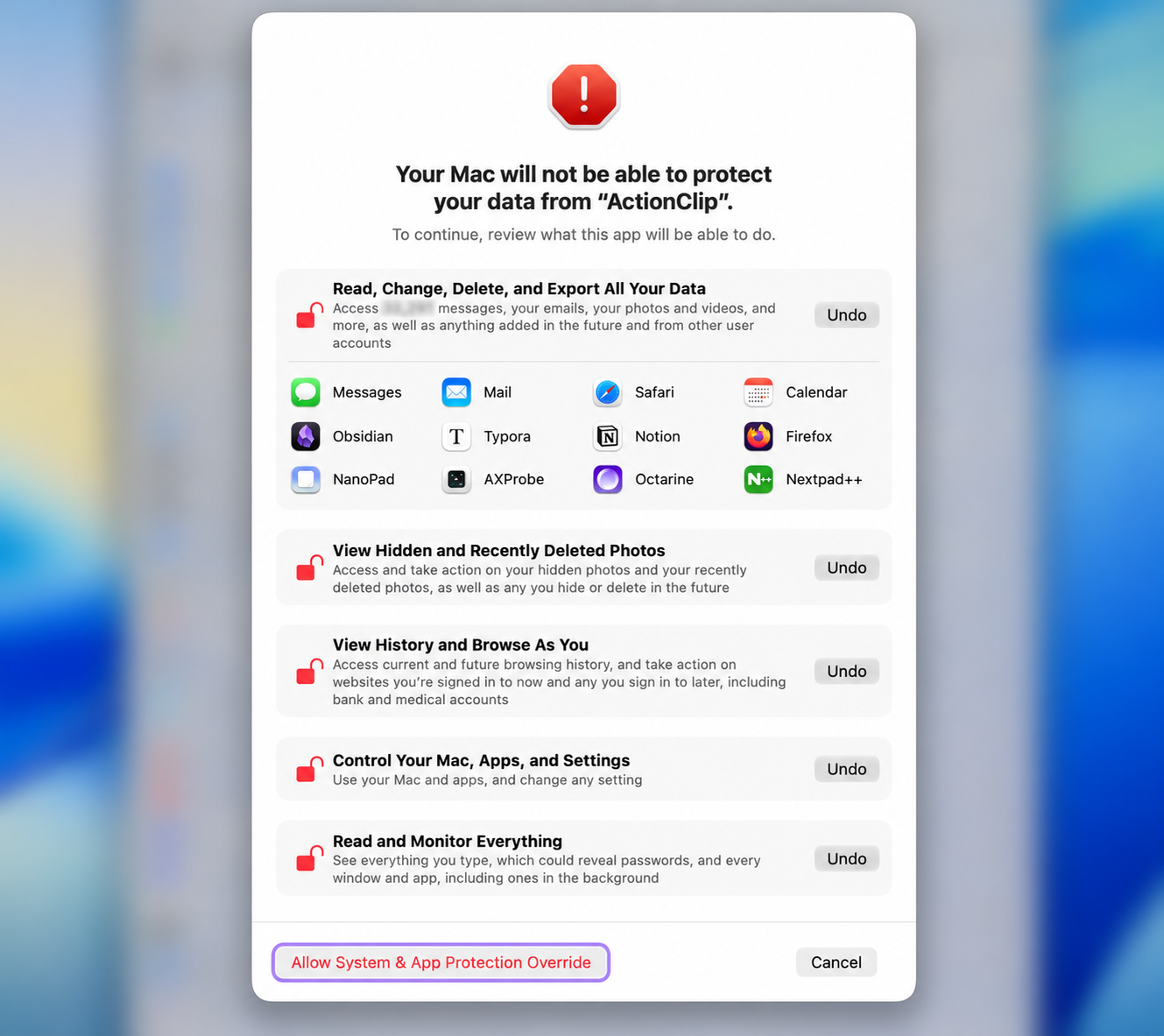
5. Allow access
After reviewing all five warnings, click Allow System & App Protection Override.
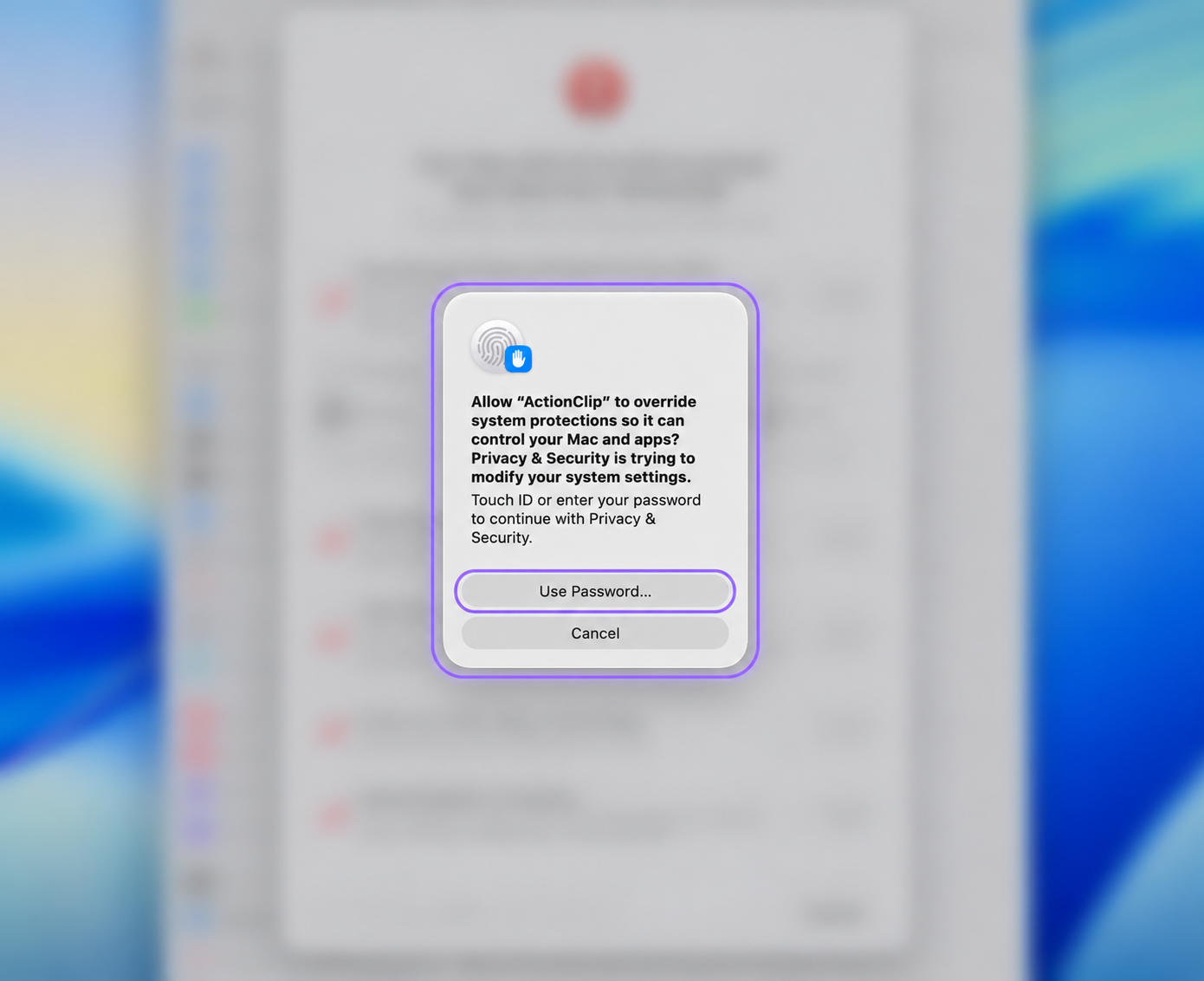
6. Confirm with macOS
Use Touch ID or click Use Password… to authenticate with macOS.
7. Return to ActionClip
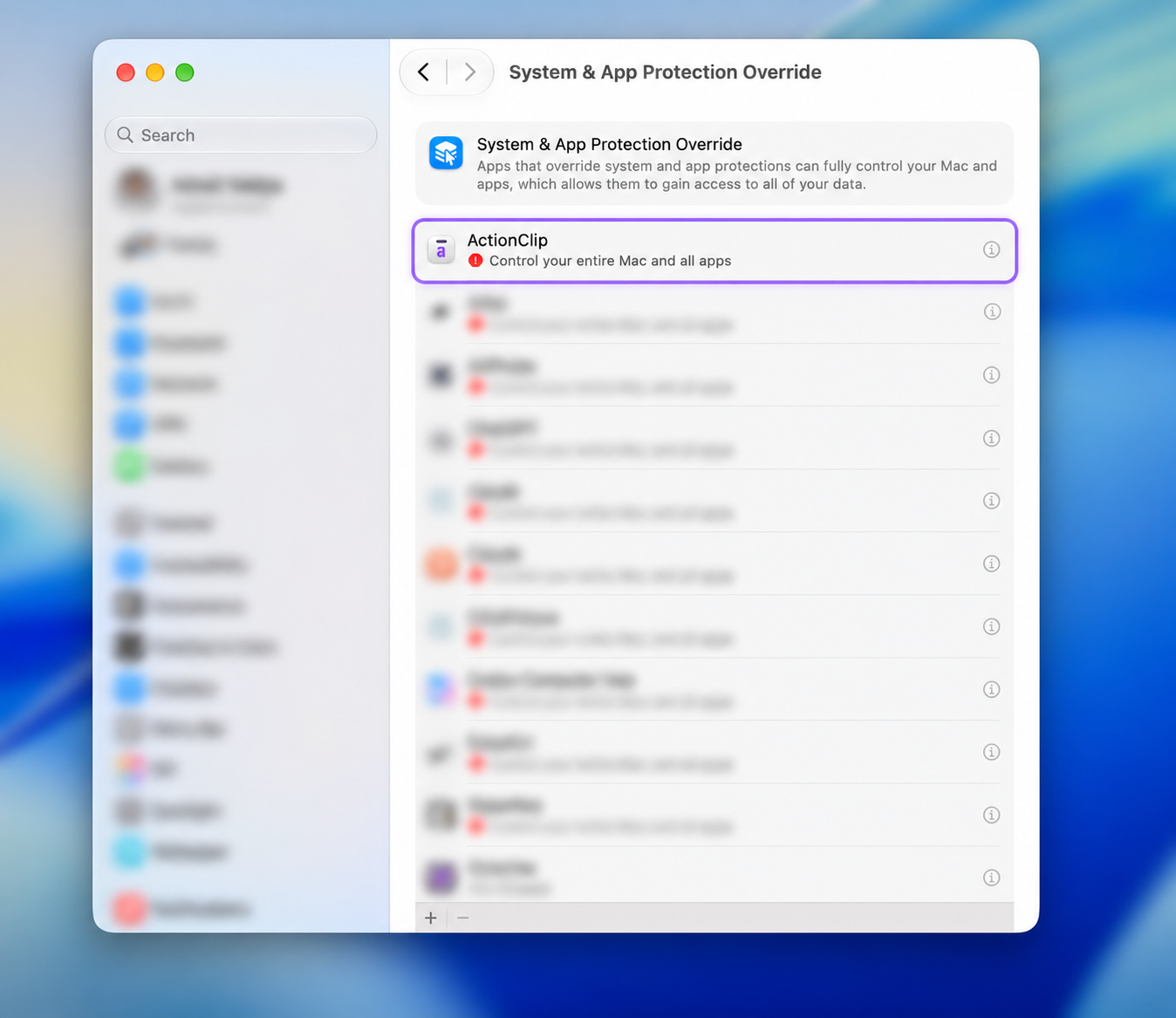
Check that ActionClip appears with Control your entire Mac and all apps. Return to ActionClip. If access is not detected, quit and reopen it.
Understand the warnings
You can leave ActionClip’s separate Photos permission off. Text selection and editing do not need Photos-library access. The photo warning in this full-control dialog must still be acknowledged with the other four warnings; these OK buttons are not separate permission switches.
| macOS warning | ActionClip’s use |
|---|---|
| Read, change, delete and export data | Read selected text and change it when you run an editing action. Access to all your data is broader than this workflow needs. |
| Hidden and deleted photos | Not needed for text selection or editing. Included in the full-control warning. |
| History and browsing as you | Browsing history is not needed. Some actions use the current page’s URL or selected content. |
| Control your Mac and apps | Run Copy, Cut, Paste, replacement and formatting commands. |
| Read and monitor everything | Detect selection gestures and shortcut triggers. Recording everything you type is not the purpose. |
Full control can expose the data listed by macOS, even when ActionClip does not need it for these features. macOS also offers access to chosen apps; ActionClip’s complete workflow with that restriction has not yet been verified.
Other permissions
- Screen Recording: used for Screenshot OCR, which recognizes text in a screen region you select.
- Automation: requested by integrations that control another app, such as Apple Notes.
These are separate from the approval above.
These instructions cover macOS 27.3 beta 2. Earlier versions use a different permission screen. Read Apple’s explanation.