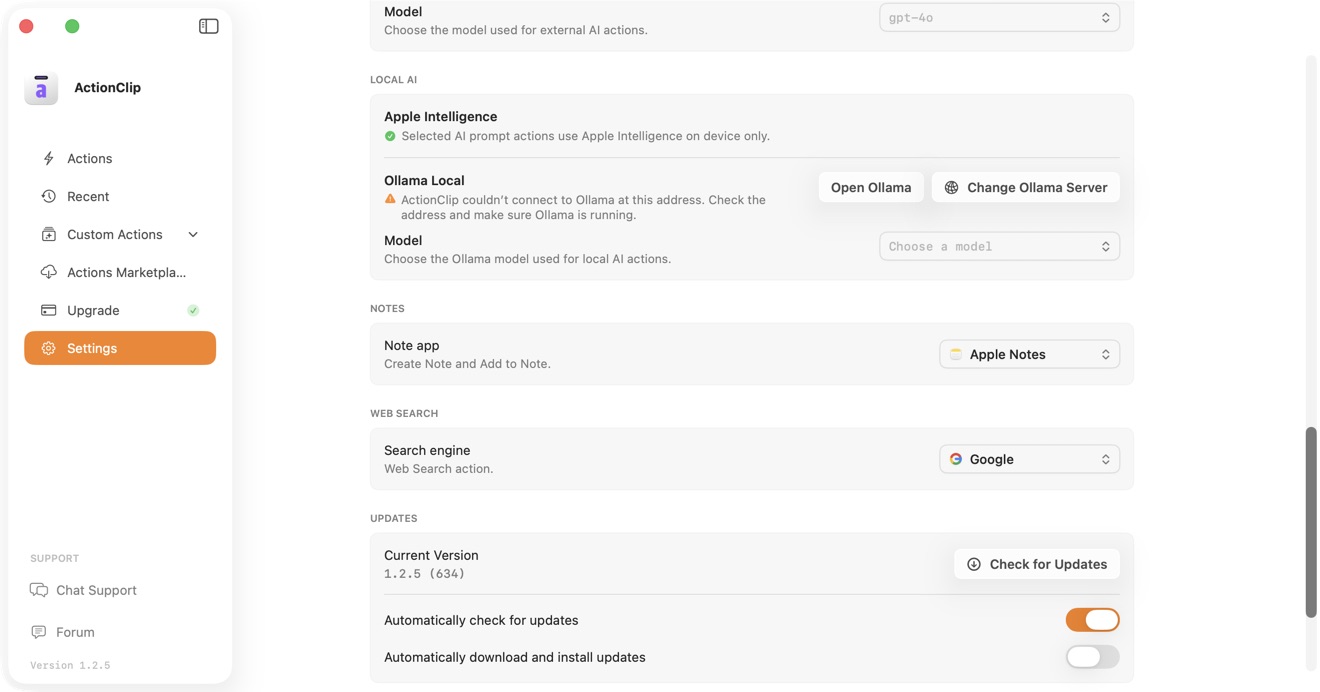
Ollama Local lets ActionClip run AI actions against a model downloaded on your Mac. It does not require Allow online actions when the server address is a local loopback address.
Install Ollama and a model
- Install Ollama from its official download.
- Open Ollama so the local server is running.
- Download at least one text model using Ollama's app or CLI.
Connect ActionClip
- Open ActionClip → Settings and find External AI.
- Under Ollama Local, review the detected status.
- If needed, choose Change Ollama Server and enter a localhost address with any port.
- Select Connect.
Choose a downloaded model
When ActionClip can reach Ollama, the Model menu lists downloaded models. Choose the one used by AI actions whose Source is set to Ollama Local.
What counts as local
localhost,127.0.0.1, and the IPv6 loopback address stay on your Mac.- LAN addresses and domain names are treated as External AI because selected text would leave the Mac.
- Ollama Cloud belongs under External AI, not Ollama Local.
Troubleshooting
- If Ollama is unavailable, open the Ollama app and retry.
- If the model list is empty, download a model and refresh the connection.
- If you changed Ollama's port, update the server address in ActionClip.
- If a model is slow or runs out of memory, choose a smaller downloaded model.