Open the Debug Console
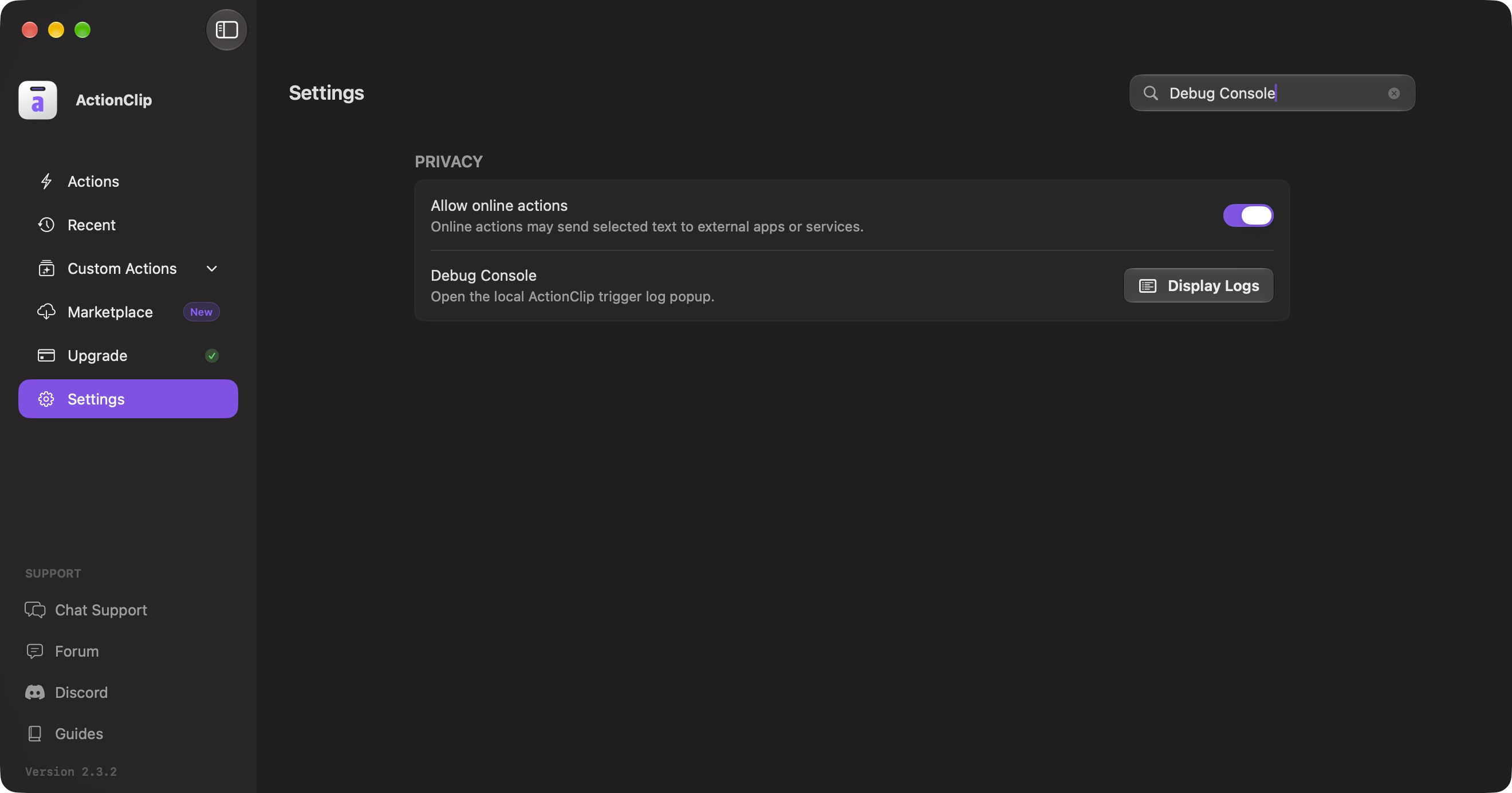
- Click the ActionClip icon in the Mac menu bar.
- Choose Settings.
- Use Search settings to find Debug Console, or scroll to Privacy.
- Click Display Logs.
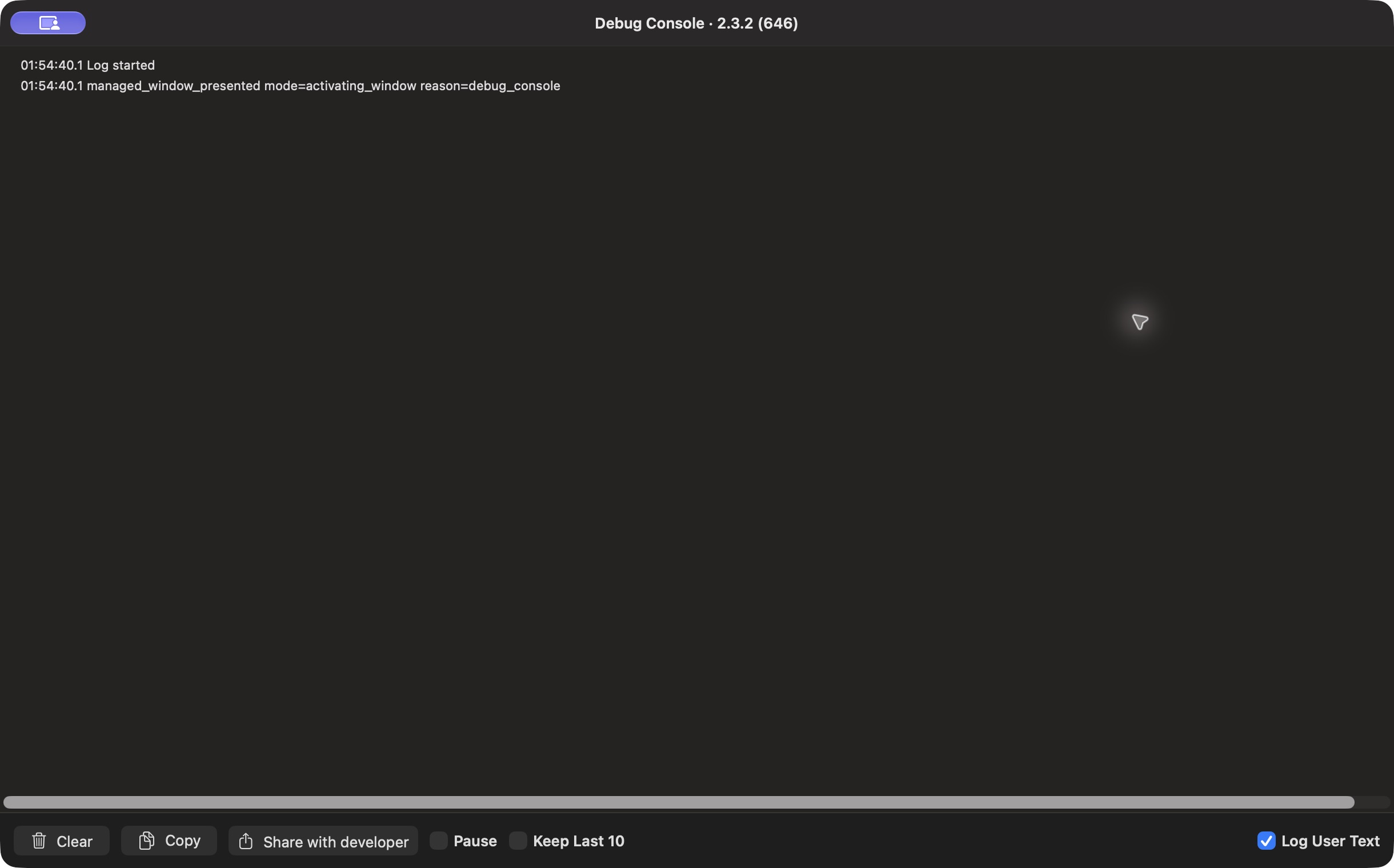
The Debug Console opens and starts recording automatically. Keep the window open while reproducing the issue.
Capture the problem
- Click Clear to remove older entries and keep the report focused.
- Make sure Pause is unchecked. Leave Keep Last 10 unchecked when support needs the steps leading up to the issue.
- Repeat the action that caused the problem.
- Return to the Debug Console after the issue happens.
Leave Log User Text off unless support specifically asks for it. Turning it off does not remove text already recorded. Use Clear before capturing a new session if you need to discard those older entries.
Share with developer
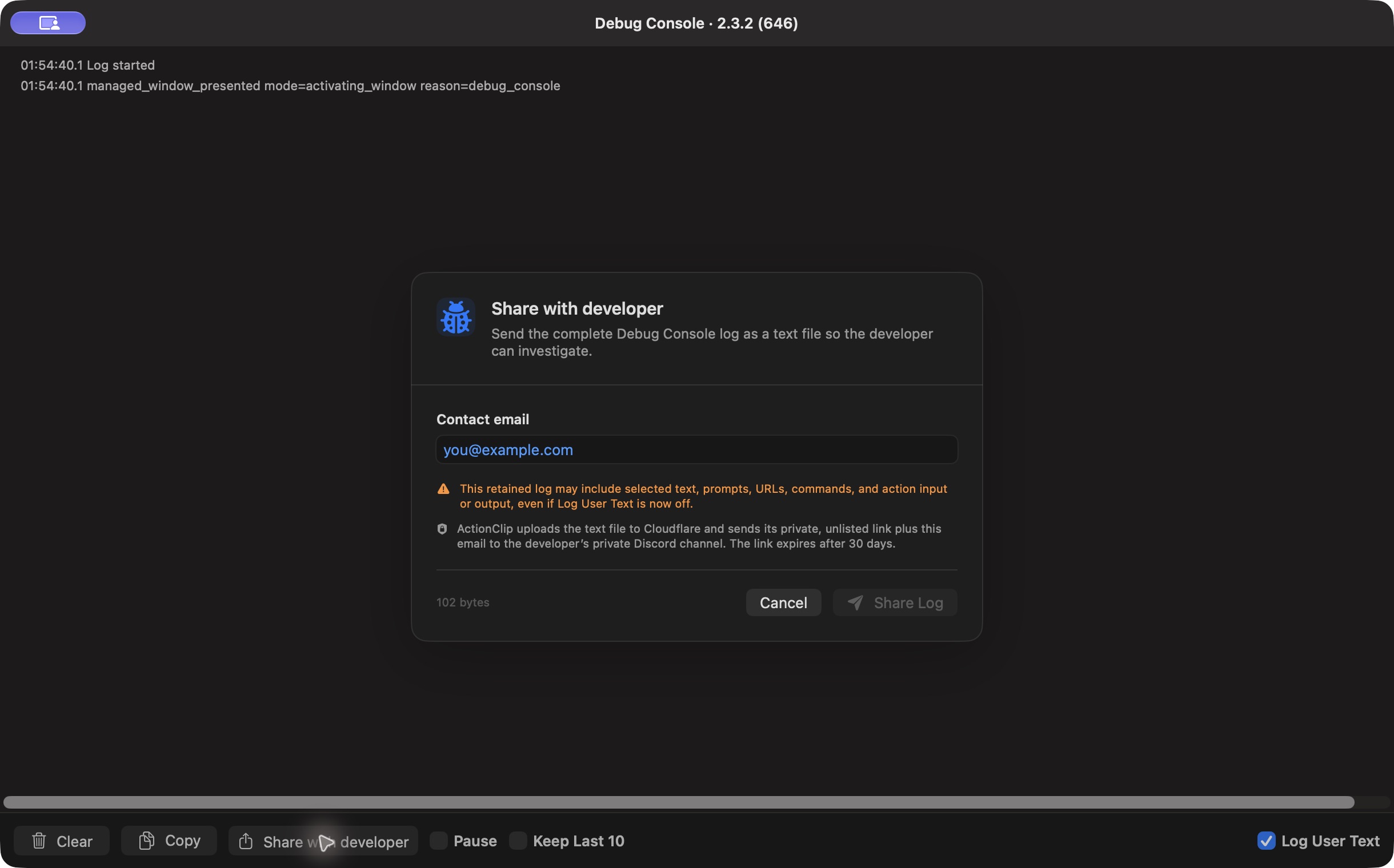
- Click Share with developer at the bottom of the Debug Console.
- Enter your Contact email. Use an address where you can receive the developer's reply.
- Review the privacy notice. A warning appears if the retained log may contain user text, even when Log User Text is now off. Choose Cancel if you want to inspect the log with Copy first.
- Click Share Log and wait for Log shared. That confirmation means the developer received a private link to the log and your contact email.
Sharing sends a snapshot of the entries currently retained in the console. It does not save a log file on your Mac or send later entries automatically. If sharing fails, the dialog shows an error; check your connection and try again.
Copy instead
- Click Copy if you prefer to inspect the complete text and share it manually in an existing support conversation.
- Remove anything you do not want to share before sending it.
In your support conversation, also describe which app or website you were using, what you did, and what you expected to happen. The sharing dialog collects your email and log; it does not include a separate issue-description field.
After sharing, you can click Clear and close the Debug Console. Closing it stops the current log capture.
Privacy
Opening the console or the sharing dialog does not upload anything. Clicking Share Log sends the current snapshot and app version to ActionClip's Cloudflare-hosted support service. The log is stored in private storage; its unlisted download link and your contact email are sent to the developer's private Discord channel. The link expires after 30 days. The share request does not add your license code or analytics identifier.
Logs can contain source-app details, URLs, commands, and Accessibility metadata. Log User Text can also include selected text, prompts, and action input or output. User-text previews captured while it was off are redacted. Review sensitive sessions before sharing, and do not include passwords, API keys, or private documents in a reproduction.
The support-log link is unlisted rather than account-gated. Anyone who receives it during its 30-day lifetime can open the text file, so do not forward it outside your support conversation.