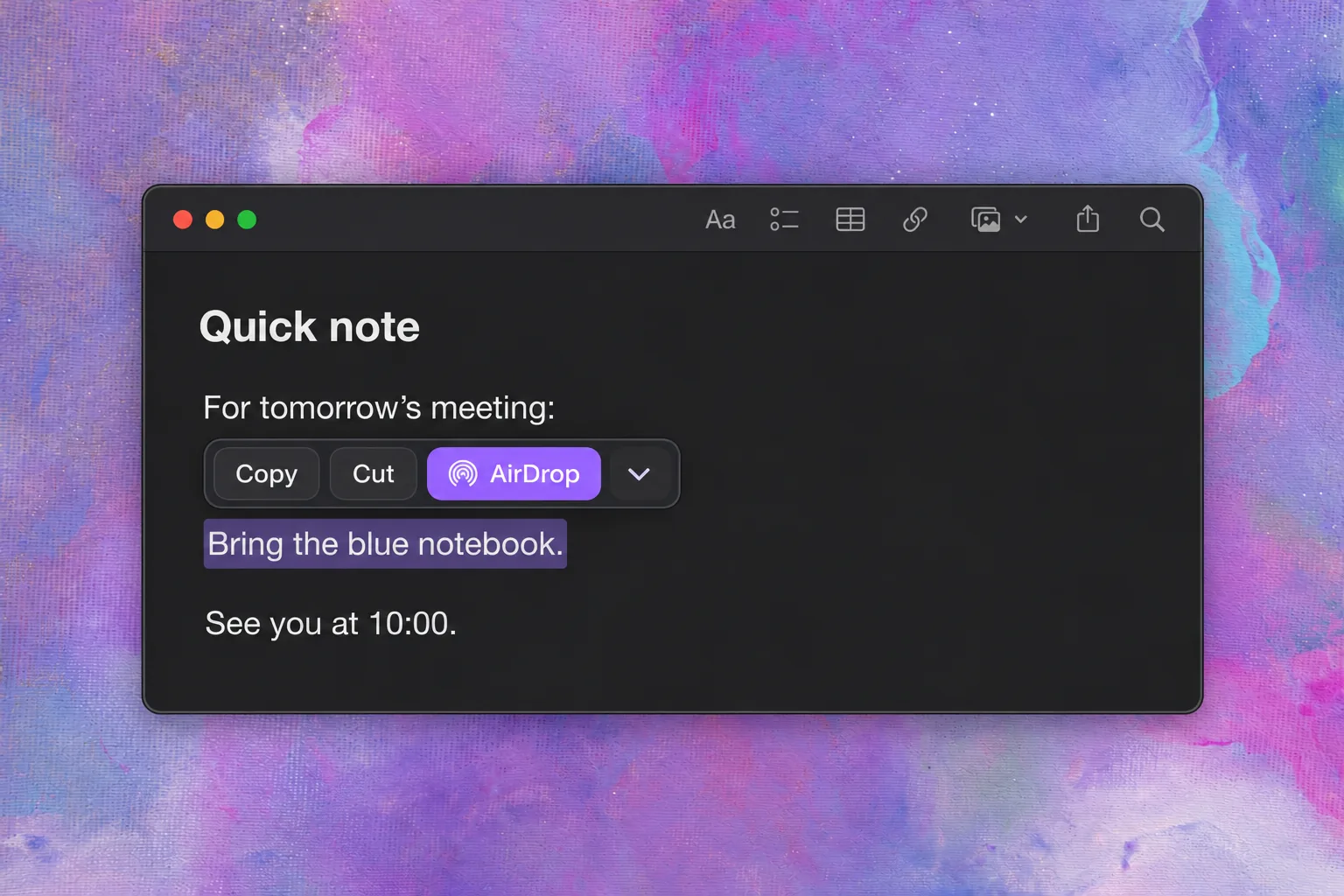
This guide covers selected text and web links. It does not cover migrating your Messages conversation history.
Choose how to send your text
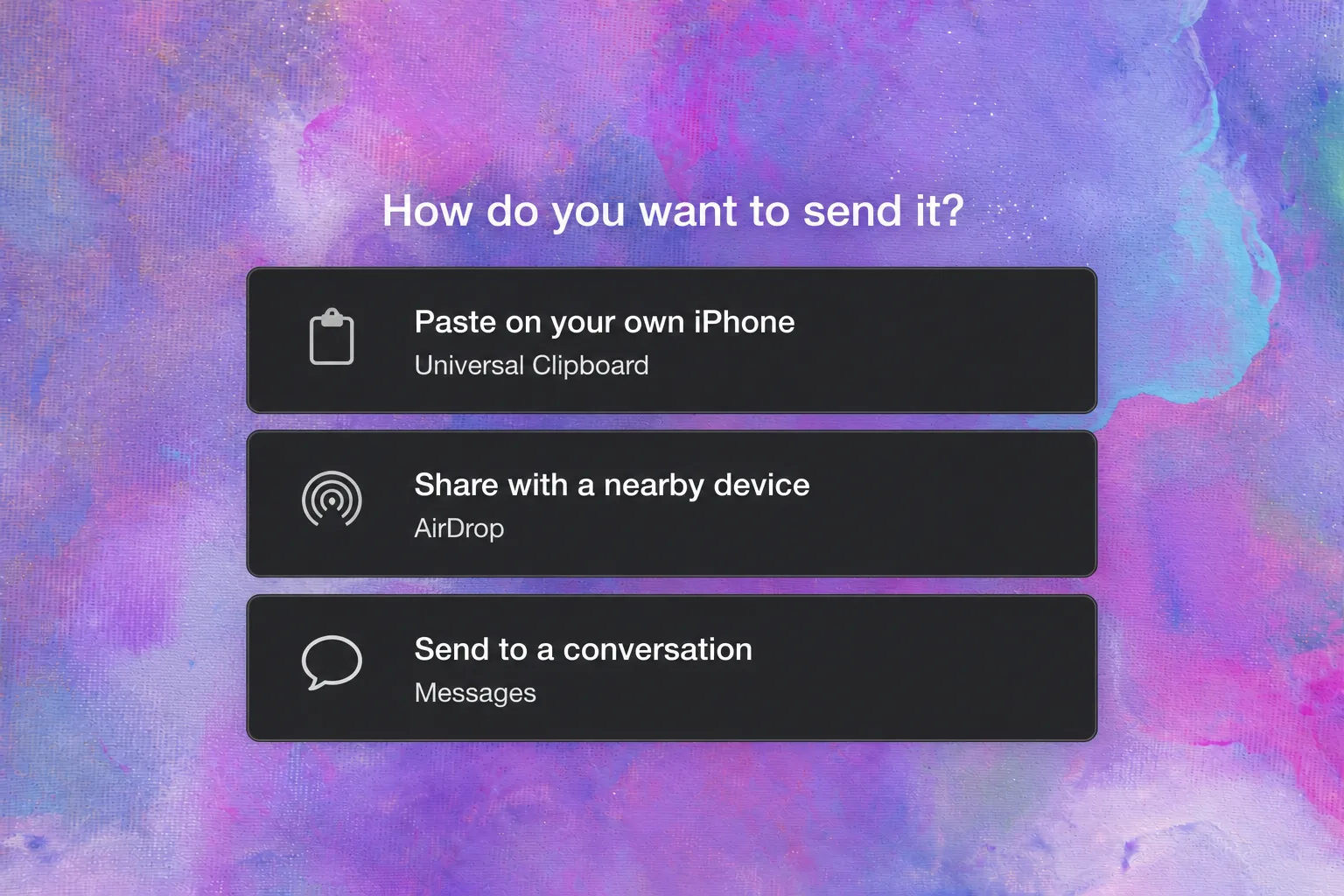
| Your task | Use | What happens |
|---|---|---|
| Copy on Mac and paste on your own iPhone | Universal Clipboard | Paste the copied content in the destination app. |
| Share a note with a nearby Apple device | AirDrop | Send a text document. ActionClip can create it from selected text. |
| Share a web address with a nearby device | ActionClip’s AirDrop action | A recognized URL is shared as a link. |
| Send text to a conversation | Messages | Review a Compose Message draft, or deliberately use Message Contact for direct sending. |
AirDrop selected text with ActionClip
- Enable AirDrop in ActionClip’s Actions list.
- Select the text in an app that supports text selection.
- Choose AirDrop from the ActionClip widget beside your selection.
- Pick the recipient in Apple’s sharing window. Follow any acceptance or code prompts on the devices.
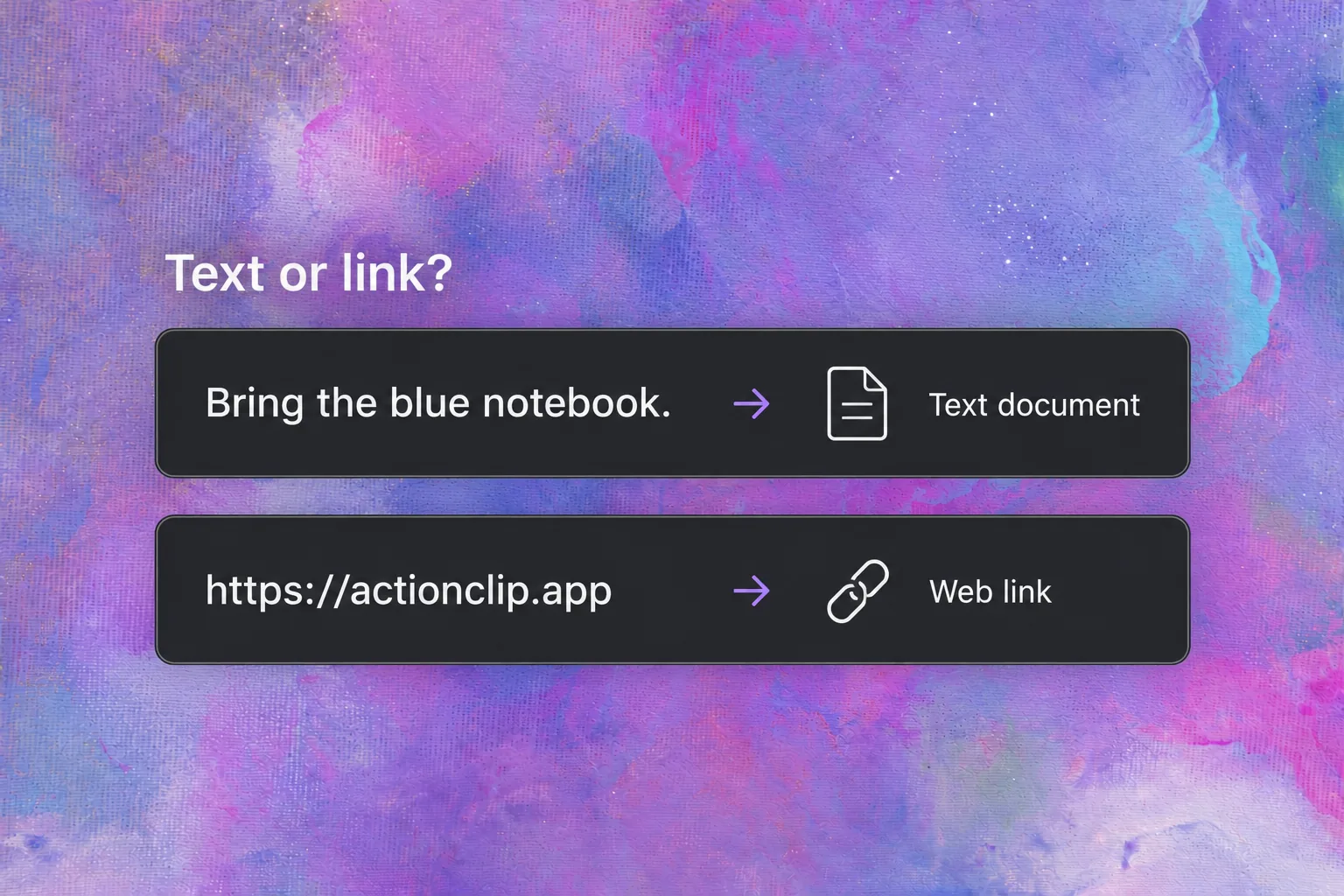
Ordinary text is sent as a text document. A recognized web address is shared as a URL. The receiving device decides how to open the item, so the result can differ between a note and a link.
Example: send a short note
Select Bring the blue notebook. and choose AirDrop. The note is shared as a text document; it does not arrive as a Messages conversation. On the receiving device, accept the item when prompted and open it using the available app options.
Example: share a web link
Select only https://actionclip.app and choose AirDrop. ActionClip recognizes the web address and shares a URL. To send a sentence as a document, try the short-note example above.
AirDrop a text file without ActionClip
You can also create a text document yourself:
- Open TextEdit on your Mac and paste your note into a new document.
- Choose Format → Make Plain Text, then save the document as a
.txtfile. - In Finder, select the saved file, choose Share → AirDrop, then select the receiving device.
Apple’s TextEdit guide explains plain-text files. Apple’s AirDrop guide covers sharing and receiving items.
Copy and paste from Mac to iPhone with Universal Clipboard
Universal Clipboard lets you copy text on one Apple device and paste it on another. Use compatible devices nearby, signed into the same Apple Account, with Wi-Fi, Bluetooth and Handoff enabled.
Copy the text on your Mac, then paste it into the destination app on your iPhone. The shared clipboard is available briefly, or until you replace it by copying something else. See Apple’s Universal Clipboard setup for requirements.
Send selected text through Messages
Choose Compose Message when you want to choose a recipient and review a draft before pressing Send. Use a configured Message Contact action when you deliberately want to send immediately to a saved recipient. The official Messages actions are available through ActionClip’s in-app Marketplace.
Set up Message Contact
- Open the in-app Marketplace → Official → Messages and add Message Contact.
- Choose Set Up Recipient. Enter a name and iMessage phone number or email, or use Choose from Contacts.
- Save. The action appears as Message [Name]; use the name Me to label it Message Me.
- Select text or a link and click the action to send it immediately.
Change the recipient from the action’s gear settings or Marketplace. Saving setup sends nothing. The saved name and address stay on this Mac.
Message Contact uses your signed-in iMessage account and may ask permission for ActionClip to control Messages. Check the conversation before repeating an uncertain send; ActionClip does not automatically retry it.
If your iPhone does not appear in AirDrop
Keep the devices nearby and check that Wi-Fi and Bluetooth are on. Check the recipient’s AirDrop receiving setting. Contacts Only depends on the sender’s Apple Account details being present in the recipient’s contact card.
For someone outside your contacts, supported systems may ask for an AirDrop code. Follow the prompts rather than assuming the same steps on every OS version. Apple’s current AirDrop instructions explain the receiving options.
Common questions
Can I AirDrop text?
Yes. Send a text document, or use ActionClip’s AirDrop action to share selected text as a document. If you want to paste directly into an app on your own iPhone, use Universal Clipboard.
Is this the same as AirDropping text messages?
This workflow shares text you select. It is not a Messages-history migration workflow. To send a new message to a conversation, use Messages.
Does AirDrop put the text on my iPhone’s clipboard?
ActionClip’s AirDrop action shares an item, such as a text document or web link. To paste text directly into another app on your own iPhone, use Universal Clipboard.
Do I need ActionClip to send a text file?
No. You can create and AirDrop a text file yourself. ActionClip lets you start from selected text without first saving the note manually.
Download ActionClip to start an AirDrop action beside your selected text.