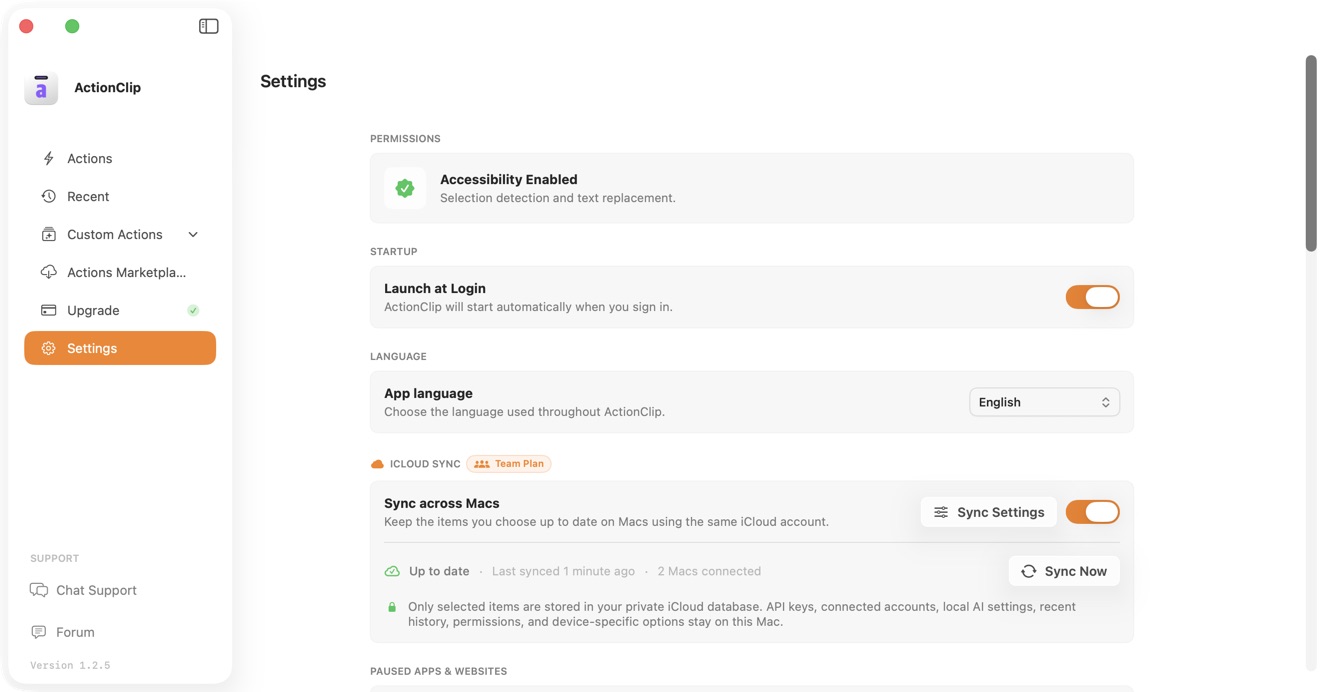
An eligible multi-Mac lifetime plan can keep selected ActionClip configuration consistent on Macs signed into the same iCloud account. Sync is optional, off by default, and uses your private CloudKit database.
Before you start
- Install the current ActionClip version on each Mac.
- Activate a 2-Mac, 5-Mac, or grandfathered Team license on each Mac.
- Sign in to the same Apple Account for iCloud on each Mac.
- Keep iCloud Drive available. ActionClip continues to work offline and catches up when iCloud is available again.
Turn on iCloud Sync
- Open ActionClip → Settings.
- Find iCloud Sync and switch on Sync across Macs.
- Select Sync Settings and choose the categories this Mac should share.
- Repeat on another Mac using the same iCloud account.
- Use Sync Now when you want to request an immediate refresh. Normal changes sync automatically.
Choose what syncs
- Actions & Groups: actions, Groups, icons, and order. Deleting a custom action affects only the Mac where you delete it.
- Popup Behavior: popup timing and selection counts.
- Appearance: theme, widget style, and text size.
- Action Defaults: languages, app destinations, search, maps, conversion defaults, and similar choices.
- Provider API Keys: an additional, separately controlled category.
Each Mac chooses its own participating categories. If nothing is selected, that Mac does not sync.
API-key sync is separate
Provider API-key sync is off by default. If you enable it, ActionClip encrypts supported keys before upload and restores them into the system Keychain on the receiving Mac.
- Supported: Gemini, OpenAI API-key mode, Claude, OpenRouter, Perplexity, and Ollama Cloud.
- Not synced: ChatGPT account sessions and tokens.
What stays on each Mac
- Selected text and clipboard contents
- Recent action history
- Permissions and paused apps or websites
- Licenses, launch-at-login, and device-specific shortcuts
- Ollama Local server configuration and downloaded models
iCloud Sync is a convenience for settings, not a backup service. Keep your own copy of important custom workflows.
Troubleshooting
- Confirm both Macs use the same iCloud account and current ActionClip version.
- Check that Sync across Macs is enabled and at least one matching category is selected on both Macs.
- Wait for an in-progress sync to finish before choosing Sync Now.
- If the sync entitlement is locked, refresh or reactivate the license on that Mac.
For the complete data boundary, read the Privacy Policy.