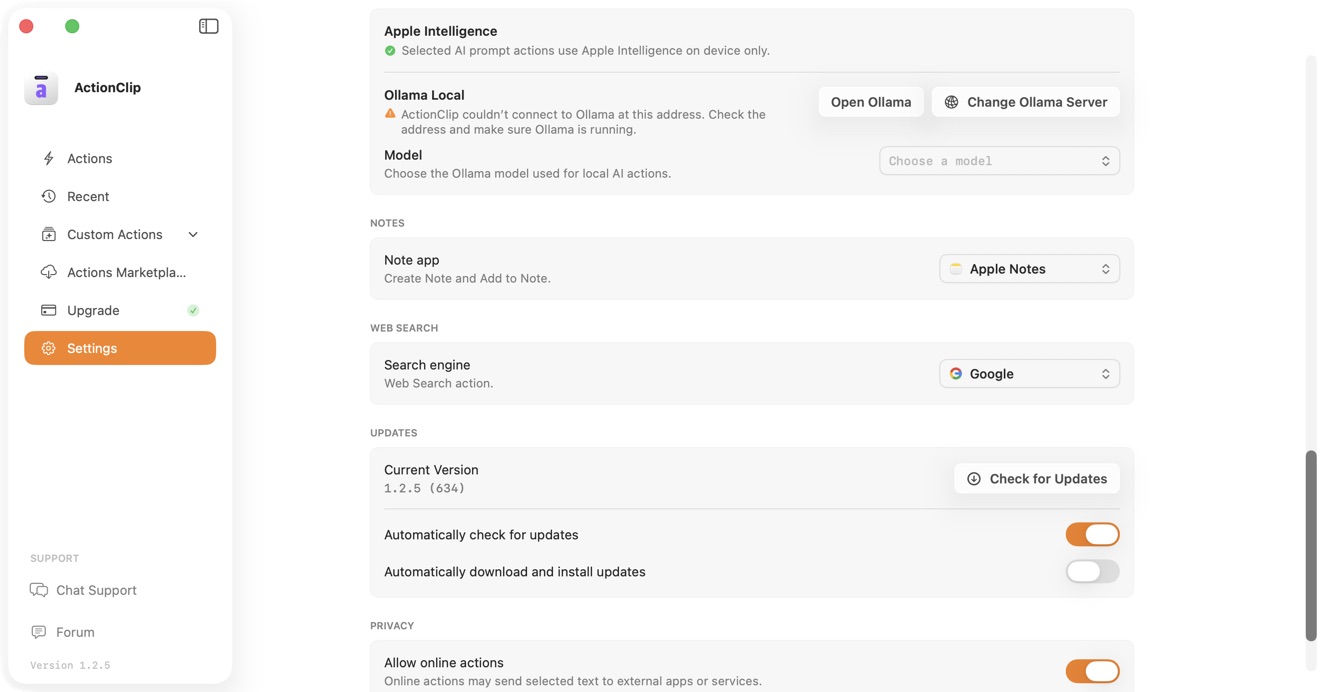
ActionClip can notify you when an update is available while leaving downloads and installation under your control.
Check for an update manually
- Open ActionClip → Settings.
- Find Updates.
- Review Current Version.
- Select Check for Updates.
- Review the available version and choose whether to download and install it.
Control automatic checks
Enable Automatically check for updates when you want ActionClip to check in the background and notify you. Turn it off if you prefer only manual checks.
Control downloads and installation
Automatically download and install updates is a separate setting. It is available only when automatic checks are enabled. Leave it off to receive update information without automatic installation.
Troubleshooting
- If Check for Updates is unavailable, confirm you are using an official ActionClip build.
- If a check fails, verify the Mac has a working internet connection and try again.
- After an update, reopen Settings to confirm the Current Version.
- Read release details on the ActionClip changelog.