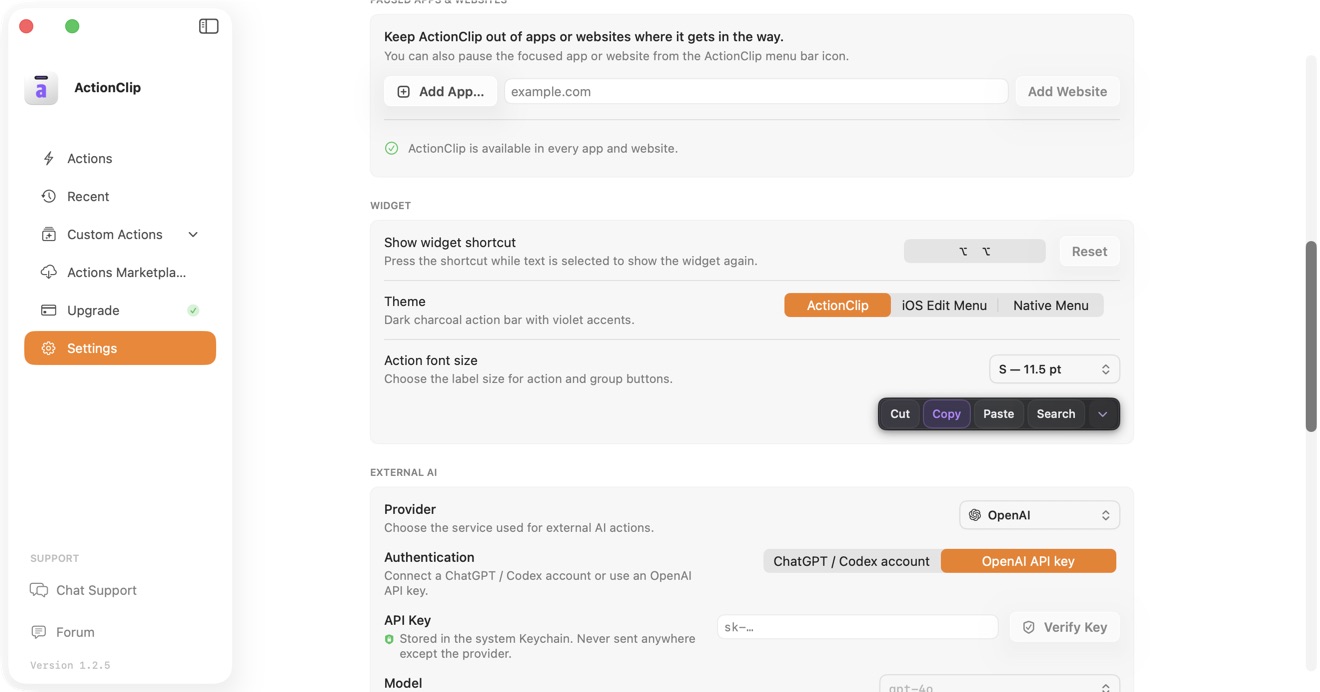
ActionClip supports two OpenAI authentication modes: a ChatGPT account or your own OpenAI API key. Choose the mode that matches how you already use OpenAI.
Choose authentication
- Open ActionClip → Settings.
- Find External AI and choose OpenAI.
- Under Authentication, choose ChatGPT account or OpenAI API key.
Connect a ChatGPT account
- Select Connect.
- In the browser, confirm the account shown on OpenAI's consent page and continue.
- Return to ActionClip and wait for the connected account and plan to appear.
- Choose an available model.
This mode uses your Codex allowance. ActionClip does not read or store your ChatGPT tokens. Use Disconnect to remove the local account connection.
Use an OpenAI API key
- Select OpenAI API key.
- Paste your key into the secure field.
- Select Verify Key.
- After verification, choose a model from the fetched list.
The key is stored in the macOS system Keychain and sent only to OpenAI for requests and verification.
Choose a model
The model menu becomes available after the account connects or the API key verifies. ActionClip refreshes the model list and warns when a previously selected model is no longer available.
Privacy and optional sync
- Selected text goes to OpenAI only when you run an External AI action.
- Allow online actions must be enabled.
- ChatGPT account sessions always stay on that Mac.
- OpenAI API-key sync is optional, available with eligible multi-Mac plans, and off by default. Supported keys are encrypted before upload.
Troubleshooting
- If account mode says ChatGPT or Codex is required, install or update the supported local OpenAI app/runtime and try again.
- If a key fails verification, confirm it is active and has access to the selected model.
- If models do not load, check the network, Allow online actions, and then use Retry.