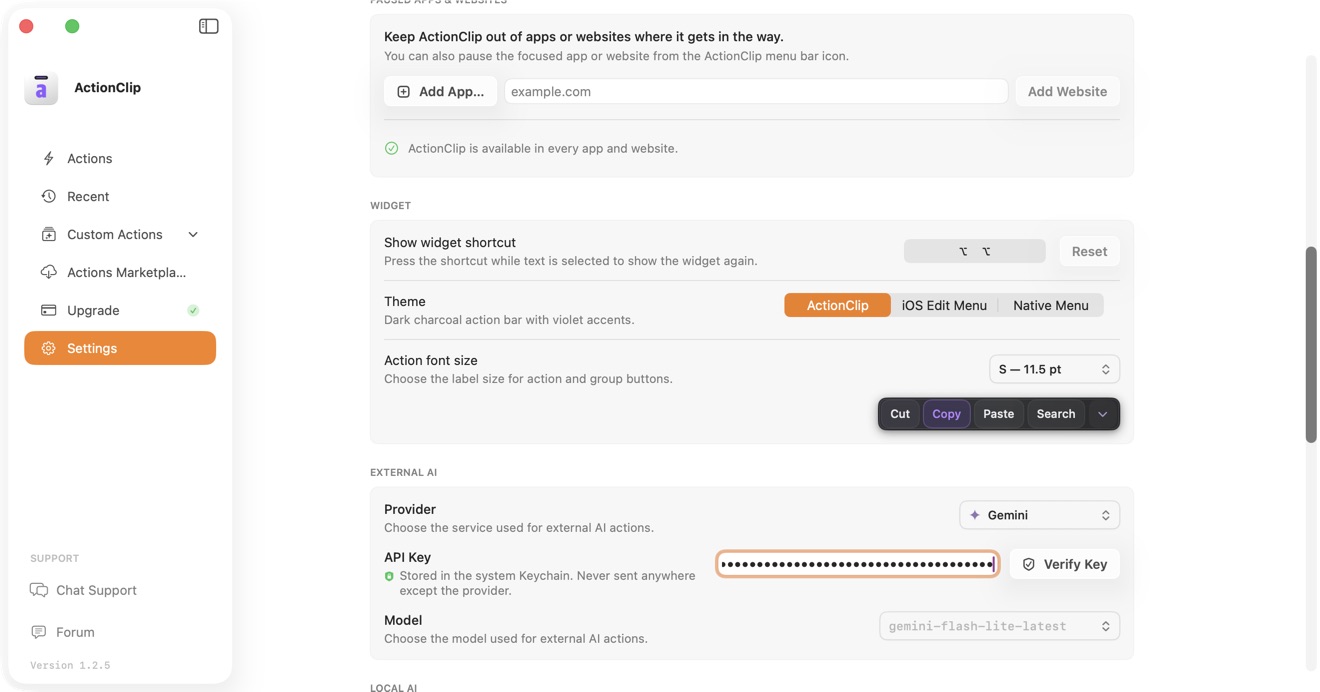
External AI Provider connects ActionClip's AI actions to Gemini, OpenAI, Claude, OpenRouter, Perplexity, or Ollama Cloud. You choose the provider, credential, and model.
Supported providers
- Google Gemini
- OpenAI
- Anthropic Claude
- OpenRouter
- Perplexity
- Ollama Cloud
Connect a provider
- Open ActionClip → Settings, find Privacy, and enable Allow online actions.
- Find External AI.
- Choose the provider.
- Paste its API key and select Verify Key.
- Choose a model after verification succeeds.
ActionClip stores API keys in the macOS system Keychain. It never sends a key anywhere except the provider it belongs to.
Choose a model
ActionClip fetches the models available to your credential when the provider offers a model-list endpoint. Perplexity instead uses its supported Sonar model list and verifies your key with a small completion request. A warning appears if a saved model is no longer available.
Use Ollama Cloud
Choose Ollama Cloud as the external provider and use its cloud credential and model. This is different from Ollama Local: cloud requests leave your Mac and require Allow online actions.
Privacy and key sync
- Selected text is sent only when you run an action using External AI Provider.
- The selected provider receives the text, model request, and necessary request metadata.
- Users with an eligible multi-Mac plan may opt into encrypted API-key sync. It is off by default.
Troubleshooting
- Verify that the key belongs to the selected provider.
- Check billing, model access, and provider usage limits.
- If the model list fails, check your connection and use Retry.
- If requests are blocked, confirm Allow online actions is enabled.