
What Paste Plain does
In paste mode it pastes the clipboard as plain text. From a normal selected-text context it can replace editable text with its plain-text form or show the clean output.
How to use it
- For clipboard content, copy it and open the paste widget in an editable field. For existing text, select the formatted text.
- Choose Paste Plain.
- ActionClip pastes or returns the clean text according to the Result setting.
Example
Bold, blue 24 pt heading
Bold, blue 24 pt heading (plain text only)
Settings
Open the action's settings from:
ActionClip Settings → Actions → Paste Plain → gear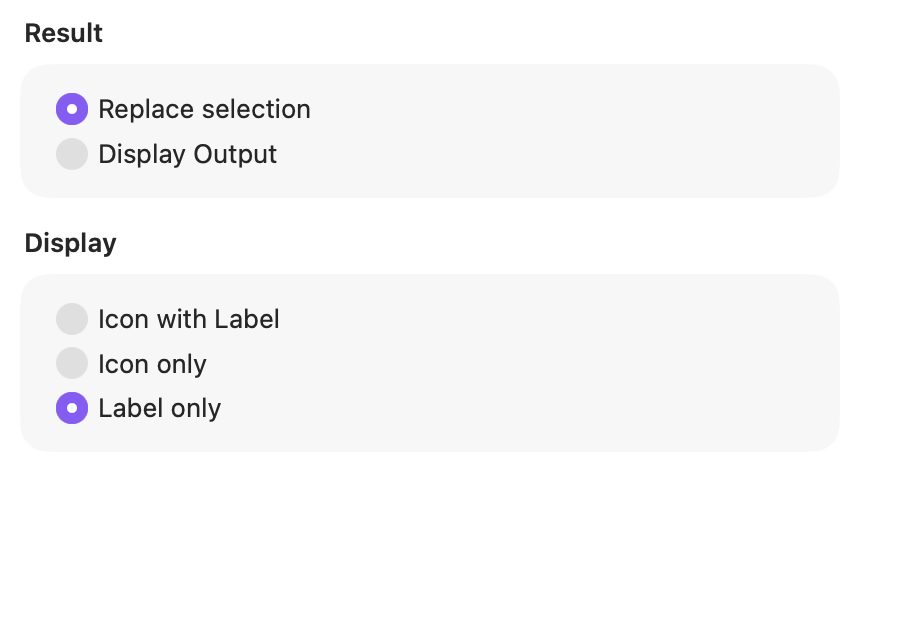
Result
Choose whether ActionClip changes editable selected text immediately or shows the transformed text as output.
Display
Choose how this action appears in the floating widget. This changes only its presentation, not what it does.
Changes are saved automatically.
You can also replace this action's icon from ActionClip → Actions. See change an action icon.
When ActionClip suggests it
It appears in paste mode and may also be promoted for editable selections that are entirely uppercase or lowercase.
Enabled actions remain available in your Actions list even when Smart Suggestions do not promote them for the current selection.
Requirements and privacy
- Works locally and does not require Online Actions.
- During paste mode, ActionClip temporarily writes plain text to the pasteboard and restores the original clipboard afterward.
- Read-only selected text opens as output instead of being replaced.