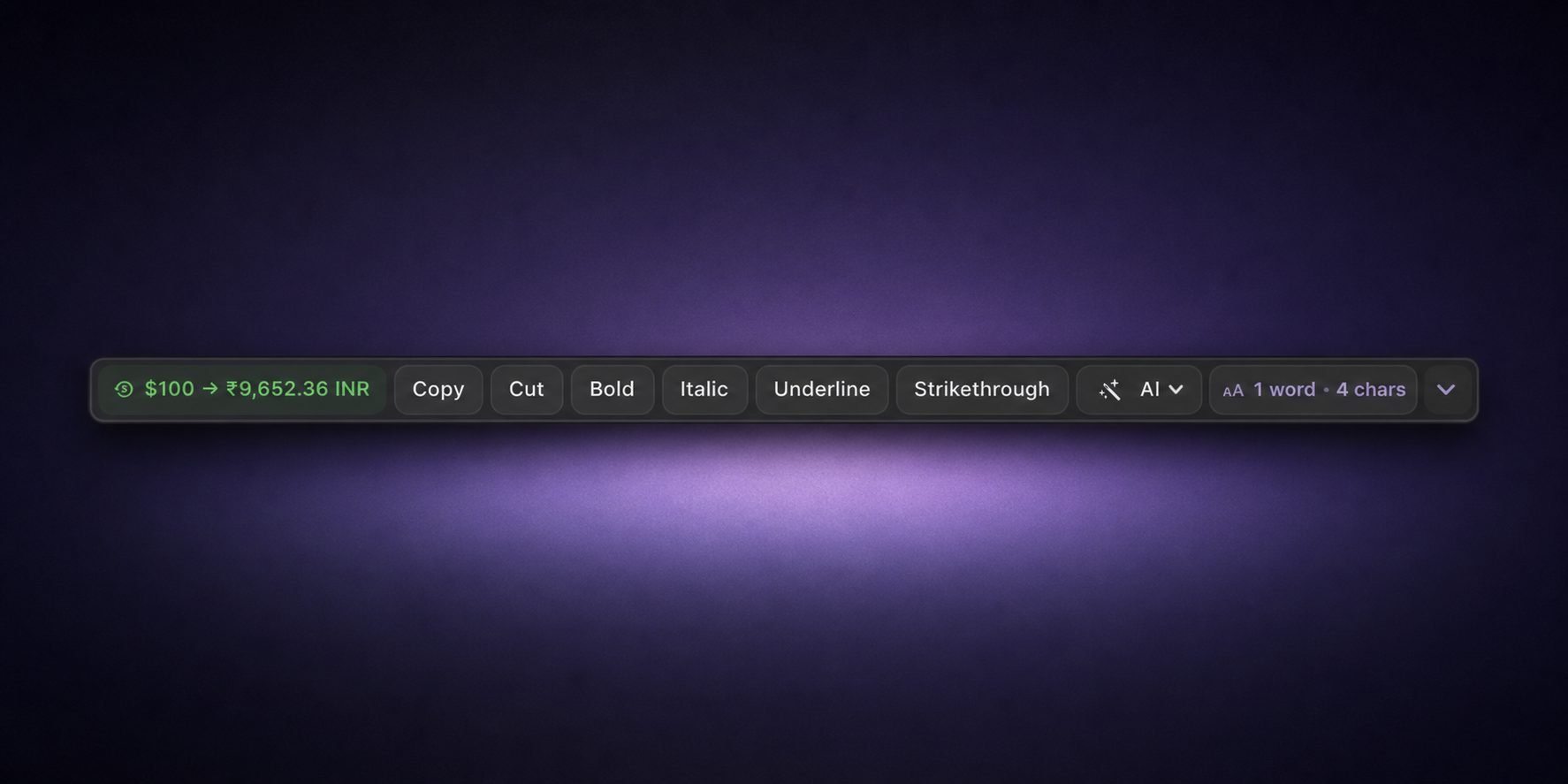
How the widget is arranged
ActionClip builds the compact widget in this order:
[Quick-result or Suggested action] [Standard actions + Groups × Widget length] [Count] [More]
- Quick-result or Suggested action: One optional Leading suggestion.
- Standard actions + Groups: The number of chips chosen in Widget length, from 3 through 15.
- Group: One or more menus of related actions. Each visible Group uses one Widget length position.
- Count: Optional word and character counts.
- More: Opens the remaining actions.
A Leading suggestion is extra. It does not replace any position in your saved Widget length.
Widget length controls only Standard actions and visible Groups. Selection counts and More are also outside that budget.
The default Widget length is six. You can choose any value from 3 through 15.
With every optional control visible and Widget length set to 15, the compact widget can contain up to eighteen controls.
Leading suggestion
ActionClip may show one Leading suggestion when the selected text matches something useful.
It can appear in two forms.
Quick-result chip
A Quick-result chip immediately shows a useful value or correction:
- A spelling correction for a misspelled word
- A currency conversion for $100
- A unit conversion for 10 km
- A time-zone conversion for 10:30 AM PDT
Suggested action chip
A Suggested action chip promotes a relevant action:
- Open Link for a web address
- Maps for a location
- Translate for another language
- A custom action matching its Recommendation Criteria
Only one Leading suggestion appears at a time.
If it promotes an action already in your order, ActionClip removes the duplicate and brings the next action forward. Every saved Standard/Group position remains available.
Standard action chips
ActionClip fills the saved Widget length with Standard action chips and visible Group chips after the optional Leading suggestion.
Their order comes from your Actions list. Actions near the top appear first.
Disabled actions are skipped, and the next enabled action moves forward.
Disabling an action does not remove its saved position. If you enable it again, it returns to the same place.
Group chips
A Group chip appears at its saved position among the Standard actions when at least one action inside that Group is enabled.
Select a Group chip to open its menu directly beneath it. Near the bottom of the screen, the menu opens above the chip.
Groups are useful for related actions such as:
- Fix Grammar
- Summarize
- Write Formally
- Make Shorter
You can create up to seven Groups. Actions and Groups share one root order, and each visible Group uses one Widget length position.
An action can belong to only one Group. Group members follow their saved order and are not repeated as standalone actions. If a Group falls outside the selected Widget length, the Group itself appears in More and opens its members as a submenu.
Selection count chip
The optional Selection count chip can show:
- Word count
- Character count
- Both counts together
It appears after the saved action-and-Group region.
The Selection count chip is extra and does not replace a Standard action.
More button
The More button is the trailing chevron that opens the More menu.
With an empty search, the More menu contains the remaining enabled actions and Groups. Type in its search field to find any enabled action, including main-widget actions and Group members. Use Up/Down and Return to choose a result. Escape clears the search before closing the menu.
The ordinary, unfiltered list does not repeat:
- Visible Standard actions
- The current Leading suggestion
- Actions inside any Group
- Selection counts
More menu rows follow your saved Actions order. If there are no remaining actions, the More button is hidden.
How to customize the widget
Open ActionClip → Actions. To review everything included with the app, see the complete built-in actions list.
Show or hide actions
Use the checkbox beside an action to enable or disable it.
Disabled actions remain in your Actions list but do not appear in the widget.
Change the action order
In Widget Order, drag an action or Group anywhere in the root list. The widget and its preview follow that unified order.
Drop an action onto a Group to add it, expand a Group to reorder its members, or use a row menu to move an action into or out of a Group. Items outside the saved Widget length appear under More in the same order.
Remove or restore an action
Choose Remove Action from the action's settings gear or menu. Built-in, Marketplace, and custom actions can be removed. Restore built-ins from the in-app Marketplace, where installed actions show Added even if disabled. Word Count and Character Count have matching Remove-only gear menus.
Use icons in the main widget
Open Settings, find Widget, and enable Icon-only mode for a compact main widget. Hover over an icon-only action to see its name. Icon-only groups open horizontal action bars; other groups and More keep labels visible. Turn off the global preference to restore individual action and Group styles.
Configure the Paste widget
Open Settings → Paste widget for the live demo, paste-option configuration, and a Manage Snippets popup. The Actions page no longer has a Paste widget preview. Set up snippets.
Close and reopen results
In Settings → Result Popup, choose whether clicking outside closes a result. Under Widget Opening, configure Reopen last result with double/triple modifier presses or a modifier-plus-key combination. A reopened result does not reuse an old editable selection.
Choose when the widget opens
In Settings → Widget Opening, set Mouse selection and Keyboard selection independently to Auto, Shortcut only, or Disable. Keyboard selection includes Shift-arrow selection and Select All.
Navigate with the keyboard
Configure Widget Opening → Show widget with double/triple modifier presses or a modifier-plus-key combination. Use it with text selected to open the widget in keyboard mode, or to begin navigation in an already open widget. Use Left/Right across the main bar, Down to enter a Group or More, Up to move back, Return to run, and Escape to close. Highlighting More focuses search so typing filters actions. Read the keyboard guide.
Run actions with global shortcuts
Open Settings → Keyboard Shortcuts → Individual action shortcuts → Configure… to assign a shortcut with one to four modifiers and a non-modifier key to an enabled action. The shortcut runs that action on the current text selection without opening the widget first.
Open Groups and More on hover
In the Widget section of Settings, enable Open dropdowns on hover. Move onto a Group or More to open its menu, then move into the list. Diagonal movement into a submenu keeps the hierarchy open. Turn the switch off to use click opening.
Prioritize actions inside a group
Drag the handles beside group members on the Actions page to change their order. The group’s display style controls its presentation; icon-only groups scroll horizontally when they need more room. Groups use the same Iconify and custom-image picker as actions.
Choose the Widget length
Use the Widget length dropdown beside the Widget Preview on the Actions page.
Choose from 3 actions through 15 actions. The default is 6 actions. The setting is saved, and updating ActionClip preserves an existing saved value. Macs upgrading from a version without this setting keep the previous six-position behavior.
Change how an action looks
Choose a display style for each action:
- Icon with Label
- Icon only
- Label only
Shorter styles make the widget more compact, but they do not change the saved Widget length.
Change a built-in or custom action icon
From ActionClip → Actions, open the gear for any built-in, Marketplace, or custom action. The same editor controls its name and icon. Groups use the same icon choices.
Choose SF Symbols or emoji, import an image, or enter an Iconify name such as solar:airbuds-case-charge-broken. Online Actions is required for Iconify and HTTPS image imports. Imported images are stored locally. The Fluent tab is removed, but previously saved Fluent icons still render. Explicit icon choices are preserved across relaunches.
Custom icons and their action order can participate in optional iCloud Sync on eligible multi-Mac plans when Actions & Groups is selected.
Configure suggestions in widget Settings
On the Actions page, open each action’s gear to configure:
- Spelling Suggestions
- Currency Conversion
- Unit Conversion
- Time Zone Conversion
- Word Count
- Character Count
Spelling and conversions use the Leading suggestion position. Word and Character Count use the Selection count chip.
Currency Conversion lets you choose primary and secondary currencies. Unit Conversion lets you enable unit types and customize the CSS em base and pixel density. Other options include spelling language and target time zone.
Create and reorder Groups
Select Create group to place related actions under one chip.
Choose its name, icon, and one or more member actions. An action already used by another Group cannot be selected until you remove it from that Group.
Expand the Group in Widget Order to enable or disable its actions and reorder its members. Drag the Group handle to place it anywhere among the root actions.
Deleting a Group does not delete its actions.
Change the app appearance and accent
Open ActionClip → Settings and find Appearance. Choose System, Light, or Dark for the app, then choose the accent color used for controls, selections, and highlights.
Change the widget theme and font size
Open ActionClip → Settings and find Widget.
Choose ActionClip, iOS Edit Menu, or Native Menu. The refined Native Menu uses macOS system typography, adaptive colors, stronger contrast, and a clearer result chip.
Choose an action font size:
- XS — 10 pt
- S — 11.5 pt
- M — 13.5 pt
- L — 16 pt
Choose where the widget appears
Open ActionClip → Settings, find Widget, and use Widget placement.
- Auto: follows the selection direction and available screen space.
- Above: prefers the space above the selected text.
- Below: prefers the space below the selected text.
Above and Below are preferences. ActionClip can use the other side when the chosen side does not have enough room.
Set the keyboard navigation shortcut
Under Settings → Widget Opening, configure Show widget with a repeated modifier press or a modifier-plus-key combination.
The shortcut opens the widget for the current selection or starts keyboard navigation in an open widget. Shortcut conflicts are checked before saving.
Check the Widget Preview
The Widget Preview shows how your setup will appear and provides the same Widget length dropdown used in Settings.
Use the sample-text options to preview:
- No suggestion
- Spelling
- Currency
- Units
- Time
A matching sample adds a Leading suggestion without reducing the saved Widget length.
You can also open Groups and More in the preview. Preview actions never run.
Widget terminology
| Term | Meaning |
|---|---|
| Compact widget | The complete floating action strip |
| Leading suggestion | The optional extra first control |
| Quick-result chip | A correction or converted value |
| Suggested action chip | A contextually promoted action |
| Standard action chip | An enabled ungrouped action filling one Widget length position |
| Group chip | Opens grouped actions and uses one Widget length position |
| Group menu row | An action displayed inside a Group |
| Selection count chip | Shows word and character counts |
| More button | Opens the remaining actions |
| More menu row | An action displayed inside More |
Use chip for the type of control. Use pill only to describe its rounded shape.
Groups and dividers
In ActionClip 2.3.2 or later, create any number of groups with one or more actions each and no maximum group size. Icon-only groups open a horizontal bar that scrolls when needed. Each action can belong to one group. Snippets keep a vertical list with text in every display mode.
Add, move, or remove Gap and Line dividers in both the selection and Paste widgets. Gap is the default style, with compact spacing.
New installations start with Language, Format, AI, Save, and Tools groups. Upgrading preserves your arrangement. Say is now built in; existing preferences and customizations are retained.
Remove a group
Open the group’s settings and choose Delete Group at the bottom left. Confirm to remove the group; its actions remain available. See all action and group settings.
Choose appearance and suggestion controls
Choose between four widget themes, including Liquid Glass, in Settings. Its transparency control has four levels. macOS accessibility settings can affect the appearance.
Auto-suggested actions and Divider after suggestion live together in widget Settings. The divider separates a suggestion from your regular actions. Suggestions add a leading section without changing your regular action order; spelling can show up to three corrections.
Installed Table to Spreadsheet and Cells to Commas actions can be suggested for matching table or spreadsheet-cell selections. A suggestion never runs an action without your choice.
After creating a custom action, choose Top or Bottom. Either choice can be changed later by reordering it on the Actions page.