
Best forContinuing in Refine
ResultOpens Refine editor
InternetNot required
What Refine does
The handoff uses Refine's local URL scheme with one safely encoded text value. ActionClip does not use the clipboard for this integration.
How to use it
- Install and open Refine on your Mac.
- Select the text you want to continue editing.
- Choose Refine from ActionClip to open the selection in Refine's Floating Editor.
Example
Selected text
Draft paragraph to polish in a dedicated editor.
Destination
Refine Floating Editor
Settings
Open the action's settings from:
ActionClip Settings → Actions → Refine → gear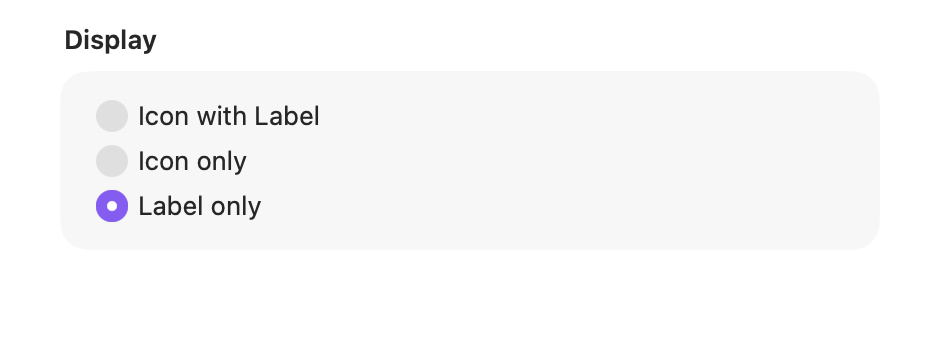
Display
Choose how this action appears in the floating widget. This changes only its presentation, not what it does.
Changes are saved automatically.
You can also replace this action's icon from ActionClip → Actions. See change an action icon.
When ActionClip suggests it
Refine has no automatic content detector. Enable, order, group, or pin it when you want it available in the widget.
Enabled actions remain available in your Actions list even when Smart Suggestions do not promote them for the current selection.
Requirements and privacy
- Requires the Refine app to be installed.
- The handoff remains local and works when Online Actions is disabled.
- The clipboard is not read or changed.