
Best forPaste-and-submit fields
ResultPastes, then Return
InternetNot required
What Paste + ⏎ does
It is useful for search boxes, command inputs, chat prompts, and other fields where Return submits or continues after a paste.
How to use it
- Copy the content you want to submit.
- Open ActionClip's paste widget in an empty editable field.
- Choose Paste + ⏎. ActionClip pastes first, then presses Return.
Example
Clipboard
ActionClip for Mac
Sequence
Paste “ActionClip for Mac” → press Return
Settings
Open the action's settings from:
ActionClip Settings → Actions → Paste + ⏎ → gear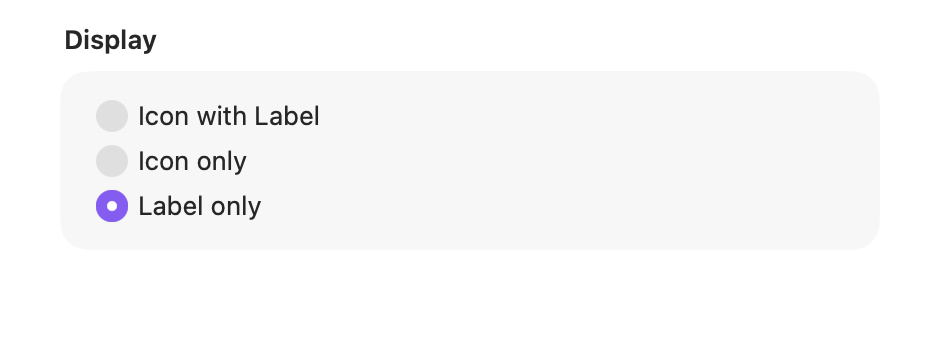
Display
Choose how this action appears in the floating widget. This changes only its presentation, not what it does.
Changes are saved automatically.
You can also replace this action's icon from ActionClip → Actions. See change an action icon.
When ActionClip suggests it
Paste + ⏎ appears only in paste mode.
Enabled actions remain available in your Actions list even when Smart Suggestions do not promote them for the current selection.
Requirements and privacy
- Works locally and does not require Online Actions.
- The destination must accept paste and Return keyboard input.
- Return may submit immediately, so confirm the clipboard before choosing the action.