
What Run in Terminal does
ActionClip recognizes common commands, path invocations, shell operators, environment assignments, and user-added command names. Blocked rules stop matching commands; alert rules require confirmation first.
How to use it
- Select a shell command you intend to run.
- Choose Run in Terminal.
- If an alert rule matches, review and confirm it. ActionClip then runs the command in the configured terminal destination.
Example
git status
Runs in the selected Terminal or iTerm tab/window
Settings
Open the action's settings from:
ActionClip Settings → Actions → Run in Terminal → gear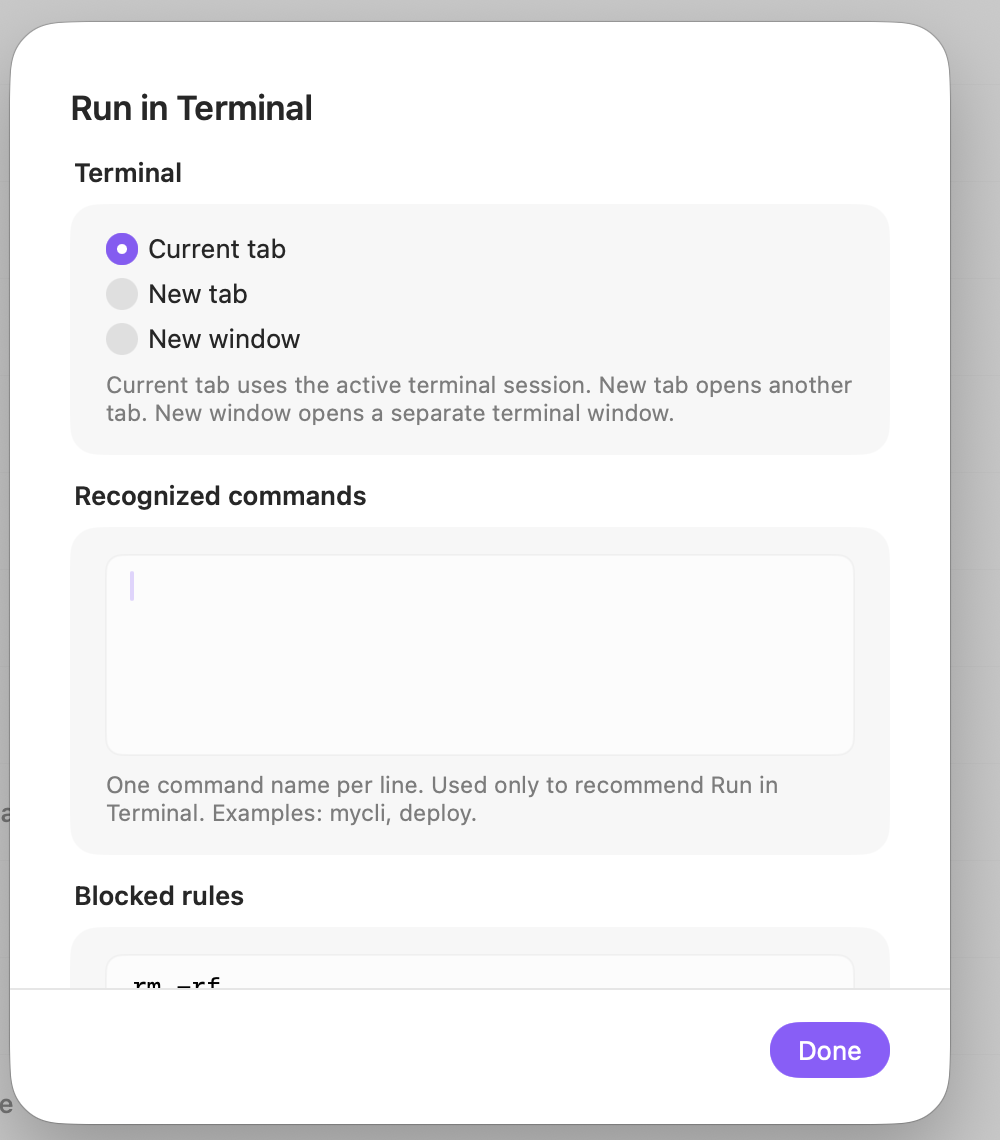
Terminal
Choose where the selected command should run.
Recognized commands
Add one custom command name per line so ActionClip can recommend this action for your own tools.
Blocked rules
Add one case-insensitive pattern per line. Matching commands never run. Wildcards * and ? are supported.
Alert commands
Add patterns that should display a confirmation before execution.
Display
Choose how this action appears in the floating widget. This changes only its presentation, not what it does.
Changes are saved automatically.
You can also replace this action's icon from ActionClip → Actions. See change an action icon.
When ActionClip suggests it
It is promoted when the cleaned selection is non-empty, at most 1,000 characters and eight non-empty lines, and resembles a recognized shell command.
Enabled actions remain available in your Actions list even when Smart Suggestions do not promote them for the current selection.
Requirements and privacy
- Works locally and does not require Online Actions.
- Command execution is always triggered by an explicit user-selected command.
- Review selected commands before running them; custom blocked and alert patterns are part of the safety policy.