
What Title Case does
Create readable English titles: keep minor words such as “and” and “or” lowercase inside a title, and capitalize title and sentence beginnings.
How to use it
- Select the text you want to use in any supported Mac app.
- Choose Title Case from the ActionClip widget or its More menu.
- Review the result, or continue in the destination app when the action opens one.
Example
notes from the design review
Notes from the Design Review
Settings
Open the action's settings from:
ActionClip Settings → Actions → Title Case → gear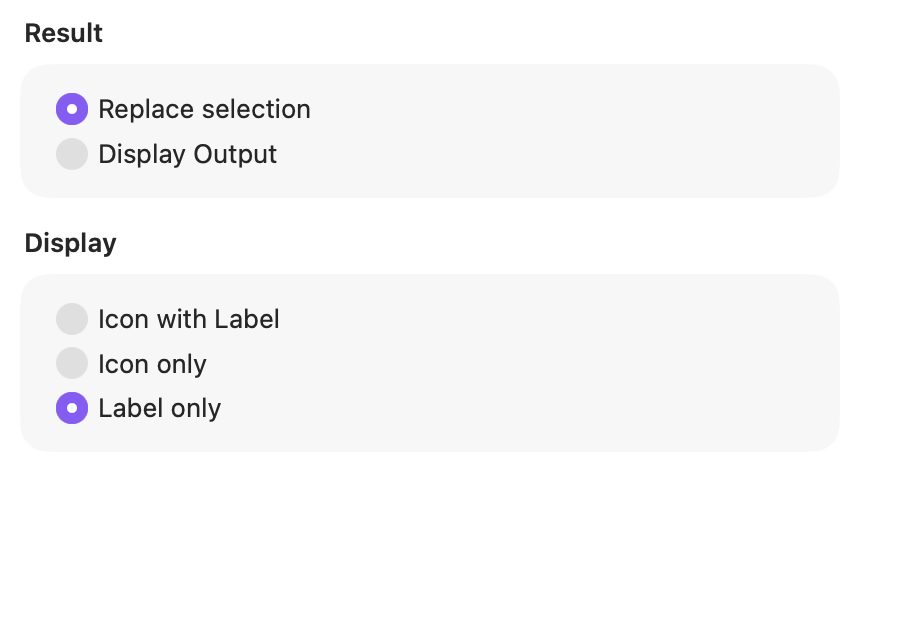
Result
Choose whether ActionClip changes editable selected text immediately or shows the transformed text as output.
Display
Choose how this action appears in the floating widget. This changes only its presentation, not what it does.
Changes are saved automatically.
You can also replace this action's icon from ActionClip → Actions. See change an action icon.
When ActionClip suggests it
Title Case is promoted with editable text-transform suggestions and remains available whenever enabled.
Enabled actions remain available in your Actions list even when Smart Suggestions do not promote them for the current selection.
Requirements and privacy
- Works locally and does not require Online Actions.
- Read-only text opens in the result popup.
- Uses English title conventions, with handling for sentence boundaries, common abbreviations, and existing acronyms.