
What Calendar does
ActionClip detects dates, one-hour ranges, ordinal-day phrases, and weekly recurrence such as “every Tuesday.” Apple Calendar creates the event directly; Google Calendar opens a browser draft for review.
How to use it
- Select text containing an event and date or time.
- Choose Calendar.
- Review the event in Apple Calendar or the Google Calendar draft.
Example
Project sync every Tuesday at 10 AM
Project sync Weekly on Tuesday at 10:00 AM
Settings
Open the action's settings from:
ActionClip Settings → Actions → Calendar → gear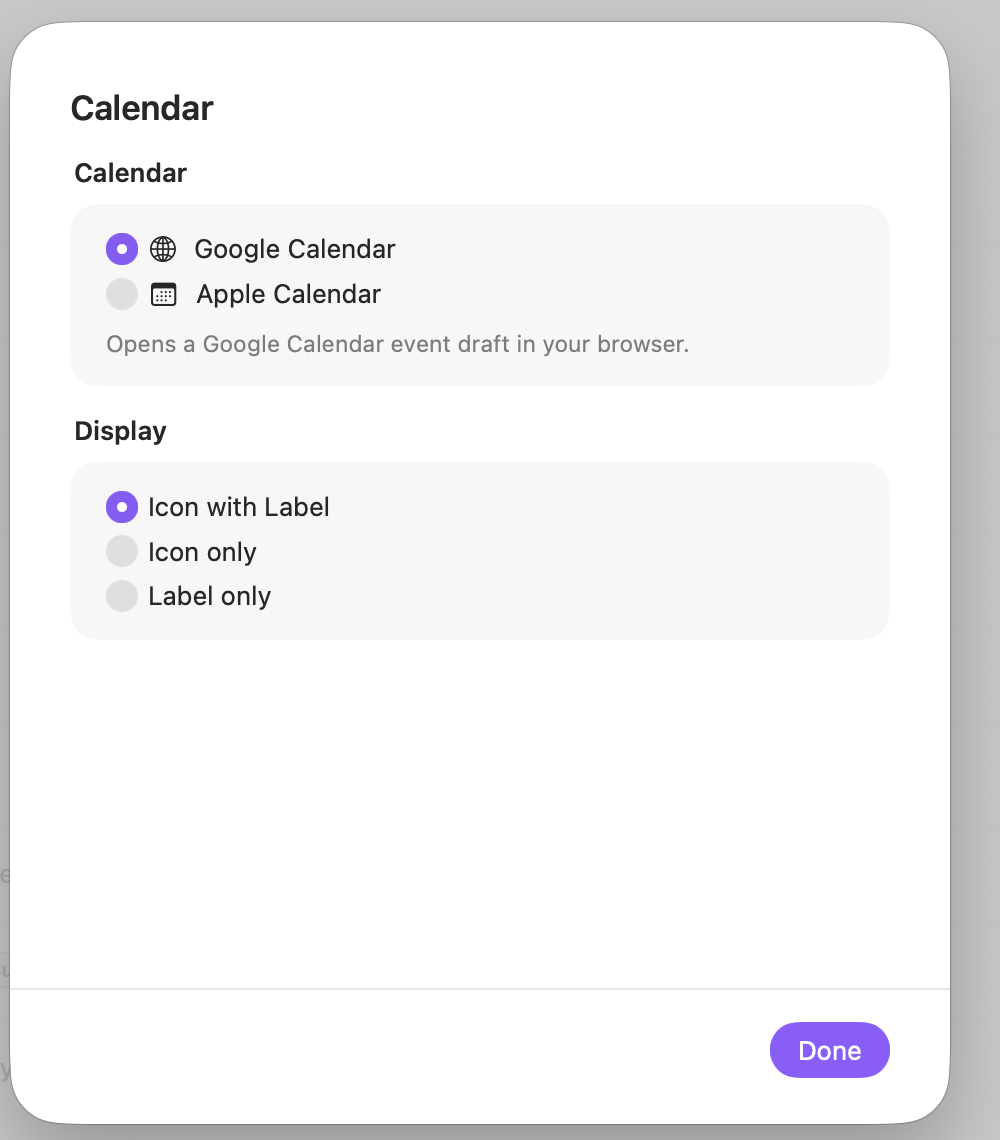
Calendar
Choose where ActionClip creates or drafts the event.
Display
Choose how this action appears in the floating widget. This changes only its presentation, not what it does.
Changes are saved automatically.
You can also replace this action's icon from ActionClip → Actions. See change an action icon.
When ActionClip suggests it
Calendar is promoted when ActionClip detects a date/event, an ordinal-day phrase such as “on the 1st,” or a weekly phrase such as “every Tuesday.”
Enabled actions remain available in your Actions list even when Smart Suggestions do not promote them for the current selection.
Requirements and privacy
- Google Calendar requires Online Actions and opens a browser draft.
- Apple Calendar works locally and requests write-only Calendar access on first use.
- Check the parsed title, date, time, and recurrence before saving.