
What Summarize does
The built-in prompt requests one key point per line and avoids a title, preamble, or follow-up question.
Compare ActionClip AI sources and providers.
How to use it
- Select the text you want to use in any supported Mac app.
- Choose Summarize from the ActionClip widget or its More menu.
- Review the result, or continue in the destination app when the action opens one.
Example
A multi-paragraph project update with decisions, dates, owners, and next steps.
- Design approved on 10 August - Maya owns implementation - Beta review starts next Monday
Settings
Open the action's settings from:
ActionClip Settings → Actions → Summarize → gear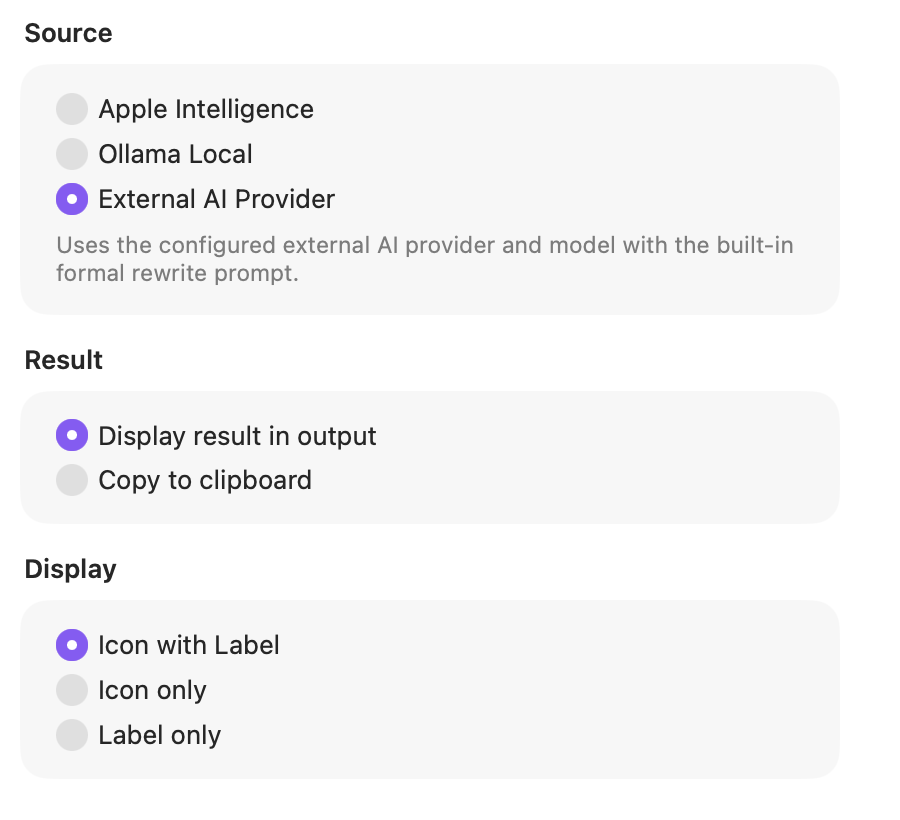
Source
Choose the engine for this action. Apple Intelligence and Ollama Local keep the request on your Mac; External AI Provider uses the provider and model configured in Settings.
Result
Show the generated text in ActionClip so you can review it, or copy it directly to the clipboard.
Display
Choose how this action appears in the floating widget. This changes only its presentation, not what it does.
Changes are saved automatically.
You can also replace this action's icon from ActionClip → Actions. See change an action icon.
When ActionClip suggests it
Summarize is promoted for read-only selections with at least 30 words when the selected AI source is available.
Enabled actions remain available in your Actions list even when Smart Suggestions do not promote them for the current selection.
Requirements and privacy
- Apple Intelligence and Ollama Local keep the request on your Mac.
- External AI Provider requires Online Actions and uses the configured provider/model or the available no-key trial.
- The selected source is exclusive; ActionClip does not silently fall back to another source.